威纶通触摸屏工程的上传、下载
- 格式:ppt
- 大小:2.41 MB
- 文档页数:16

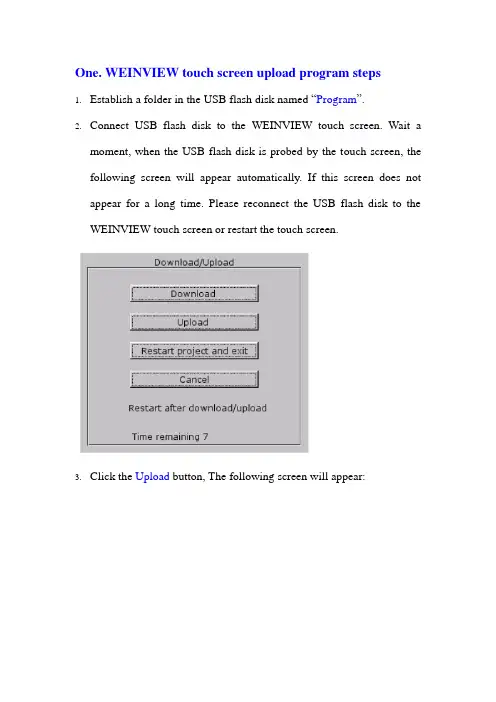
One. WEINVIEW touch screen upload program steps1.Establish a folder in the USB flash disk named “Program”.2.Connect USB flash disk to the WEINVIEW touch screen. Wait amoment, when the USB flash disk is probed by the touch screen, the following screen will appear automatically. If this screen does not appear for a long time. Please reconnect the USB flash disk to the WEINVIEW touch screen or restart the touch screen.3.Click the Upload button, The following screen will appear:screen will appear:5.Choose “usbdisk” and Click into, the folder in the USB flash disk willappear, choose the folder program.6.Click the button OK, waiting for the touch screen upload programautomatically, it will restart when finished. When all of these is accomplished, Unplug USB flash disk.7.Connect the USB flash disk to computer. You will find the uploadprogram folder in the program folder.Two. WEINVIEW touch screen download program steps1.Establish a folder in the USB flash disk named “download”. Copy atouch Screen program “mt8000”into the folder “download”. The name of the folder “mt8000”can not be changed! It must be “mt8000”.2.Connect USB flash disk to the WEINVIEW touch screen. Wait amoment, when the USB flash disk is probed by the touch screen, the following screen will appear automatically. If this screen does not appear for a long time. Please reconnect the USB flash disk to the WEINVIEW touch screen or restart the touch screen.3.Click the Download button, The following screen will appear:4.Input passport(Usually the default for “111111”) Then the followingscreen will appear:5.Choose “usbdisk” and Click into, the folder in the USB flash disk willappear, choose the folder which you save the folder “mt8000”, you must select the folder download which is the parent directory folder of “mt8000”. As the picture below:6.Must select the folder download which is the parent directory of thefolder “mt8000” and click it (as the picture above), then select ok, just waiting for the touch screen download program automatically, it will restart when finished. When all of these is accomplished, Unplug USB flash disk. All is over.Three. WEINVIEW PC software EB8000 installation1.Open the /download.php website.2.Click EB8000V450_20110923, download the EB8000 software.3.Unzip the EB8000V450_20110923.zip file. Double-clickthefile, select the English language and complete the installation.Click hereClick hereFour. Use EB8000 software change the button’s Label1.Open the EB8000 installation folder. Delete the font and library folder.2.Copy the new font and library folder and paste to the EB8000installation folder.3.Open the file you want edit use EB8000. TakeCHH100_SCREEN-V3.01.mtp for example.4.Click language select button select L3 Russian.5.Change the button lable for example. Double-clickthis button, the Function Key Object’s Properties screen will appear.6.Click the Label button, then click the Label Library button.Click here7.The Label Tag Library screen will apear. Click the button settings .8.The Label Tag Content screen will apear. Edit the Language 3 tochangethe button’s label. After that click the OKbutton.Click hereEdit hereClick here。

小白入门威纶通触摸屏系列:EBPro从建立工程到工程下载这里给大家讲解一下在威纶通触摸屏软件Easy Builder Pro如何建立一个工程文件到工程下载的过程。
这也是使用触摸屏进行编辑画面程序非常重要的一步,下面我们就学习一下如何操作。
一般来说,建立一个工程文件的基本步骤如下:1. 建立新的工程文件;2. 保存/ 编译工程文件;3. 执行在线模拟 / 离线模拟;4. 下载工程文件至HMI。
下面将详细的说明每个步骤的操作方法。
1. 进入 Easy Builder Pro 点击开新文件,即可创建新工程。
2. 选择型号以及显示模式,勾选使用范本。
3. 再在出来的对话框,点击新增。
4. 选择需要连接的PLC类型,并设置好接口类型,以及正确的通信参数。
5. 设置好之后,在设备列表中会增加一个新的设备,这里新增了FX3U PLC。
6. 这时就建立一个新元件,以位元状态切换开关元件为例,设定好PLC名称、地址、开关类型等设置。
7. 设置好之后点击确定,将元件放置于编辑视窗中,即完成了一个简单的工程文件。
1. 在Easy BuilderPro 的菜单上,点击文件 - 保存文件,存成 .emtp格式文件。
2. 点击工具 - 编译将文件编译为 .exob 文件,再将此文件下载至HMI即可。
1、点击工具 - 离线模拟或者对应的快捷图标,可以进行离线模式操作。
离线模拟:在 PC 上模拟工程文件的运行,不需与任何设备连接。
2、点击工具 - 在线模拟或者对应的快捷图标,可以进行在线模式操作。
在线模拟:在PC 上模拟工程文件的运行,不需将程序下载到HMI,而PLC 是直接与 PC连接,需要设定正确参数。
下面介绍四种下载工程文件至 HMI 的方法。
第一种方法,使用USB下载线下载。
选择USB 线下载程序,使用USB 线传输程序前,需至我的电脑 - 设备管理器确认 USB 驱动是否安装完成,如果没有安装,请先手动完成安装。
然后在 Easy Builder Pro 的工具菜单上,点击工具 - 下载,选择USB下载线。

威纶通触摸屏U盘下载方法最近项目上面使用了威纶通TK6070IQ的触摸屏,这款触摸屏是通过U盘上传下载程序的,觉得也蛮方便的,以下介绍一下u盘下载触摸屏的方法,供大家参考。
1.在 U 盘中创建一个新的文件夹。
例如 download:2.创建 U 盘下载资料:2.1 在 EB8000 组态软件中创建:a:打开 EB8000 组态软件,点击“工具”下拉菜单->“建立使用 U 盘与 CF/SD 卡所需的下载资料”b:弹出“建立使用 U 盘与 CF/SD 卡所需的下载资料”窗口,点击浏览按钮,找到 U 盘\download 文件夹,点击确定:c:返回到“建立使用 U 盘与 CF/SD 卡所需的下载资料”窗口,此时目录指向 H:\download,点击“建立”,当弹出“创建成功”窗口后,则下载资料已创建完毕。
注:以上方式是创建 EB8000 当前打开的工程至 U 盘。
2.2 在 EB8000 Project Manager 窗口创建:a:在 Project Manager 窗口中,点击“建立使用在 U 盘与 CF/SD 卡所需的下载资料”按钮:b:弹出“建立下载资料”窗口,点击浏览按钮,选择存储下载数据的目录:d:返回到“建立下载资料”窗口,点击建立,下载资料创建成功:注:以上方式是创建编译后(*.xob)的任何工程至 U 盘。
3.将 U 盘插入触摸屏上,等待几秒钟后,弹出 Download/Upload 窗口,点击 Download 按钮:4.弹出密码输入窗口,输入密码,初始密码为:111111,点击 OK:5.弹出“Pick a Directory”窗口;展开 usbdisk,将蓝色横条定位在 download(即在 U 盘中创建的文件夹)位置,且只能定位在该位置,不可选择 history 或 mt8000,点击 OK 按钮开始下载。
6.下载完成后,触摸屏画面如下图所示:。