RSLogix Emulator 5000 仿真设置
- 格式:doc
- 大小:215.50 KB
- 文档页数:10
这段时间学习AB PLC,一直不知道RSLogix Emulator 5000 怎么设置,废了一番功夫,找到这篇文章,总算解决了I/O模块的问题
RSLogix Emulator 5000 is a software simulator for the Allen Bradley line of Logix 5000 contr ollers (ControlLogix®, CompactLogix®, FlexLogix®, SoftLogix5800® and DriveLogix®). The goa l is to mimic the of a PLC without the actual hardware and thus do advanced debugging. More information can be found in the AB publication LGEM5K-GR015A-EN-P.
As a quick introduction we’ll go th rough a simple example of setting up a simulation. This involves three major steps.
1.Setting up the chassis monitor.
2.Creating a connection in RSLinx.
3.Creating a project with associated emulation hardware.
Setting up the Chassis Monitor
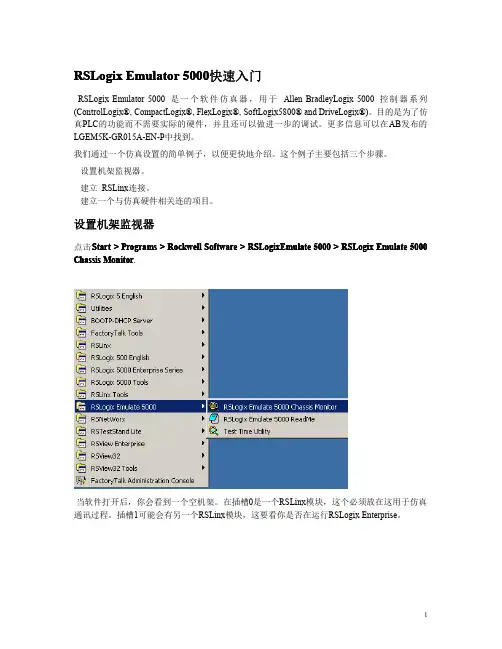
To start the Chassis Monitor, click Start > Programs > Rockwell Software > RSLogixEmulate 5 000 > RSLogix Emulate 5000 Chassis Monitor.
When the emulator opens up you’re confronted with what looks like an empty chassis. In slo t 0 is an RSLinx module which has to be there for the emulator communications to work. Your slot 1 might have another irremovable RSLinx module depending if you are running RSLogix En terprise.
From here we set up our hardware configuration for simulation. Our first step will be to ad d the CPU. In this case it is a special one called an Emulation Controller.
1.Click Slot > Create Module.
2.Choose the Emulator RSLogix Emulate 5000 Controller.
3.Chose slot 2 for the controller
4.Click OK to add it to the chassis monitor.
5.At this point you may be accosted with a message about previous configurations. Jus
t select Reset the Configuration to Default s and click NEXT.
6.The next two dialog screens are for setting up the controller details. Click NEXT a
nd FINISH to accept all the defaults.
Next we’ll add some input/output simulation.
1.Click Slot > Create Module.
2.Choose the 1789-SIM 32 Point Input/Output Simulator.
3.Chose slot 3 for the simulator and click OK.
4.Accept the defaults for the setup by clicking NEXT and FINISH.
The chassis monitor will now have two emulation modules in it ready to go.
Creating a connection in RSLinx
1.Start RSLinx under Start > Programs > Rockwell Software > RSLinx > RSLinx Classic
2.Click Communications > Configure Drivers.
3.Select the Virtual Backplane (SoftLogix 58xx) driver from the Available Driver Type
s list.
4.Click Add New. The Add New RSLinx Driver dialog box appears. Click OK.
5.The new driver appears in the Configured Drivers list. Click Close.
Using RSLogix Emulator in a Project
To use the emulator in a project you must setup the hardware correctly.
1.Start the RSLogix 5000 software and create a new project.
2.Under the New Controller window type select an Emulator – RSLogix Emulator 5000 Con
troller. Give it a name and assign it to the same slot as the one you put in the Ch assis Monitor which in our example is slot 2. Click OK.
3.In RSLogix 5000's Controller Organizer, right click on the I/O Configuration folder,
and then click New Module. The software displays the Select Module
4.Open the Other folder. Select the 1756-MODULE from the modules list and then click O
K.
5.The software displays the New Module
a. Add a Name for the card.
b. In the Slot field put the number that corresponds with the Chassis Monitor.
c. For the Connection Parameters put in the following and click OK
6.
7.
8.On the next Module Properties screen make sure to change the Requested Packet Inter
val to 50.0 ms.
Ready, Set, Go
You are now ready to use the emulator just like you would any other PLC. Open Who Active a nd set the path to the RSLogix 5000 Emulator.
The inputs can be simulated in the emulator’s Chassis Monitor by right clicking on the modu le and selecting Properties. Under the I/O Data tab is the ability to toggle each of the in puts on or off.。