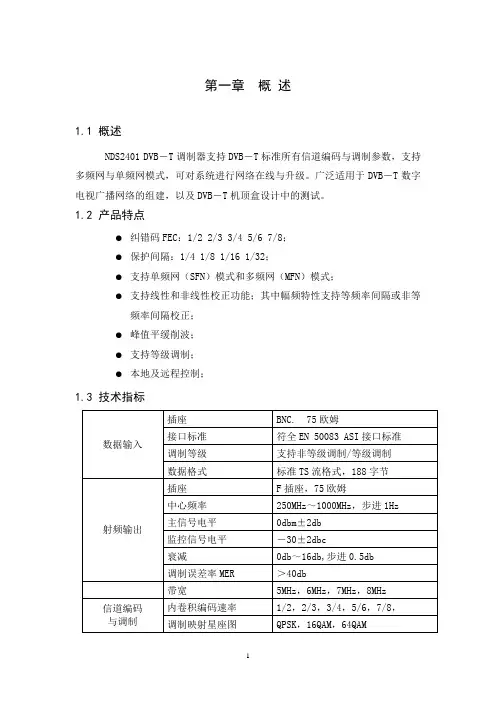
DVB-T产品说明
- 格式:pdf
- 大小:338.64 KB
- 文档页数:22
Digital Terrestrial ReceiverUser ManualDVB-T-0615INSTALLATION OF STB (3)1.1F RONT P ANEL (3)1.2R EAR P ANEL (3)1.3S YSTEM C ONNECTION (4)1.4R EMOTE (5)2.MAIN MENU (6) P ROGRAM L IST (7)2.1.2M USIC P ROGRAM L IST (8)2.1.3.S ORT (8)2.2PROGRAM SEARCH (9)2.2.1.A UTOMATIC S EARCH (9)2.2.2.M ANUAL S EARCH (10)2.3.PARENTAL CONTROL (10)2.3.1..C HANNEL L OCK (11)2.3.2P ARENTAL S ETTING (12)2.3.3C HANGE PIN (12)2.4SYSTEM SETTING (13)2.4.1TV S TANDARD (13)2.4.2.D ISPLAY T YPE (14)2.4.3.V IDEO O UTPUT (14)2.4.4A NTENNA P OWER (15)2.4.5.R EGIONAL S ETTING (15)2.4.6.L ANGUAGE (16)2.4.7.T IME S ETTING (16)2.4.8.S YSTEM S CHEDULE (17)2.5.GAME (17)2.6.ACCESSORY (18)2.6.1S YSTEM I NFORMATION (18)2.6.2F ACTORY D EFAULT (19)2.6.3.S YSTEM U PDATE (19)2.7.PERSONAL STYLE (20)3. TECHNICAL SPECIFICATION (21)4. TROUBLESHOOTING (21)Safety Caution:『Power cord Protect』When you connect the power plug into the socket on wall or draw it, you should firm to grasp the plug; Don’t use wet hand to connect or draw it. Power cord must be kept far from the heat device. Don’t place heavy device on the power cord. If the STB is not in use, turn off the power switch and disconnect the power cord plug from the socket on the wall.『Holding Place』Please don’t place this device on any unstable or vibratory objects. Keep it from the heat sources. Don’t expose it to the sunshine. Don’t hold it in dirty place. Please don’t disassemble the device other otherwise the high voltage shock inside may hurt you. Don’t place heavy device on the STB.『Miscellaneous Items』Please use the dry soft rag cloth to clean that exterior cover of the device. Don’t splash any liquid into the interior of the device. Otherwise it may cause heavy damage to the STB. When you change the STB‘s connection with other device (i.e. …TV), turn off the power of the STB at first. Don’t hot swap the AV output plugs.Device Traits:z Adapt a powerful single-chip resolve solutionz Full conform the European DVB-T (C-OFDM) industrial standardz Convenient used User Interface, support Multi-language Character-sets UI Displayz A powerful and high effective EPG functionz Support PAL,NTSC,AUTOz Powerful programs edit abilities (add, favorite, sort and remove)z Store up to 999 programs and keep the memory while power offz The STB contains a PIG functionz Wide range AC power supply (~100-240V)z Ultra-low signals threshold receive demodulatorInstallation of STB1.1Front PanelFig 1.1①POWER Button ②Left move Button ③MENU Button④Right move Button ⑤Up move Button ⑥OK Button⑦Down move Button ⑧REMOTE SENSON1.2Rear PanelFig 1.2①【AERIAL】RF-IN input②【LOOP】RF-OUT output③【RS-232】Connect to the computer④【A-L】Connect to the left audio channel of TV⑤【A-R】Connect to the right audio channel of TV⑥【SPDIF】Digital audio output⑦【VIDEO】Composite video output⑧【VCR】Connect to the VCR scart⑨【TV】Connect to the TV scart1.3System ConnectionNote: Before connect this STB to other devices,please close all devices’power.Fig 1.3z Put the Terrestrial aerial’s connector jack into the STB receiver’s “ AERIAL ”socket on its rear panel. ” LOOP ” socket also can connect to another STB,which provided same aerial signals.z Please plug the “VIDEO”, “L” and “R” jack on its rear panel to TV’s appropriate connector jack.z Turn on the TV. Set TV to AV mode.z Plug the STB’s power cord into the 100-240V, 50/60Hz AC power socket on the wall.IF STB “NOT” PLAY THE PROGRAM, REFER TO THE CHAPTER 4“AUTOMATIC SEARCH” IN USER MANUAL.1.4RemoteFig 1.4keys FunctionsPOWER Power on or offSLEEP Setup sleep time<0>-<9>Select program or input appropriateparametersTV/RADIOSwitch from TV to Radio or on the contrary INFO Display the information of current program MENU Display the main menuEXIT Quit, or return to up-level menu.Up/Down moveLeft/Right moveOK Confirm, entry into sub-level menu; display the program list when no OSD(menu) CH- Program number minusCH+ Program number addMUTE Mutes audio output of receiverVOL- LowerthevolumeVOL+ Increase the volumeAUDIO Left/Right and stereo audio state switch PAUSE Pause the current program playback SEARCH Auto search for the programsTV/VCR TV scart or VCR scart switchN/P Choose a TV system (NTSC/PAL/AUTO) DISPLAY Display related informationFAV Display the user-settings favorite listEPG Electronic Program Guide.2.Main MenuThe STB contains a facilitated user interface, this function is to make user easy to call all device functions. Press “MENU” key, you can see the main menu.Fig 2.0z When no menu is appeared on the screen, you press the [MENU] key that will display the main menu. The focus is stopped in the first item until the user selectit.z When menu is appeared on the screen, you press the [MENU] key that will cancel the display of main menu.z【OK】key:When you press the key that will go to current sub-level menu item.z【】key:The focus will move up or down.z【EXIT】key:Return to the up-level menu.2.1 Program ListIn the main menu, press Up or Down key to select “Program List” icon, then press “OK” key to enter (see Fig 3.0). From this menu, you can select “TV Program List”, “Music Program List” or “Sort” item.Fig. 3.02.1.1. TV Program ListFrom “Program List” menu, select “TV Program List” sub-menu then press “OK” key to enter (see Fig 3.1). You can edit TV program in the “TV Program List” Menu.Fig. 3.12.1.2 Music Program ListFrom “Program List” menu, select “Music Program List” sub-menu then press “OK” key to enter (see Fig 3.2). You can edit Music(Radio) program in the “Music Program List” Menu.Fig.3.22.1.3. SortFrom “Program List” menu, select “Sort” sub-menu then press “Right” key to enter (see Fig 3.3). The function is basically the channel manager menu.Fig 3.32.2Program SearchIn the main menu, press up or down key to select “Program Search” icon, then press “OK” key to enter (see Fig 4.0).From this menu, you can select “ Automatic Search”or “Manual Search” item.Fig 4.02.2.1.Automatic SearchFrom “Program Search” menu, you can select “Automatic Search” menu (Fig 4.0), press “OK” key to enter. Further you may press Left or Right key to select “ok” or “cancel” icon (Fig 4.1), then press “OK” key to confirm.2.2.2.Manual SearchFrom “Program Search” menu, you can select “Manual Search” menu. Set the “Channel No”, “Frequercy” and “Bandwidth”, then press “OK” to enter manual searching.Fig 4.22.3.Parental ControlIn the main menu, press Up or Down key to select”Parental Control” icon,Press “OK” Key to enter(fig 5.0).This time you must input the Password( default : 9999), press OK key to confirm.Fig 5.12.3.1..Channel LockHighlight “Channel ” menu (Fig 5.2), press “OK” key to enter then you can select “YES” or “NO” icon.Fig 5.22.3.2Parental SettingHighlight “Parental Setting ” menu, press “OK” button to enter, then you can set which programs you want to lock.Fig 5.32.3.3Change PINHighlight “Change PIN ” menu, press “OK” button to enter then reset new PIN.Fig 5.42.4System SettingIn the main menu, press Up or Down key to select “System Setting” icon, then press “OK” key to enter sub-menu.Fig 6.02.4.1TV StandardFrom “System Setting” menu (Fig 5.1), select “TV Standard” menu (Fig 5.2),then you can select “ PAL” , ” NTSC ” or “ AUTO” item and press “OK” key to confirm.Fig 6.12.4.2.Display TypeFrom “System Setting” menu (Fig 5.0), select “Display Type” menu, then you can select “ 4:3 PS” , ” 4:3 LB ” or “ 16:9” item.Fig 6.22.4.3.Video OutputFrom “System Setting” menu (Fig 5.0), select “Video Output” menu ,then you can select “ CUBS+S-Video” , ” CUBS+RGB ” or “ RGB+PSCAN” item.Fig 6.32.4.4Antenna PowerFrom “System Setting” menu (Fig 5.0), select “Antenna Power” menu,then you can select “ OFF” or ” ON” item.Fig 6.42.4.5.Regional SettingFrom “System Setting” menu (Fig 5.0), you can select “Regional Setting” menu ,set the “Country”,”OSD Language”and”Time Zone”.Fig 6.5nguageFrom “System Setting” menu (Fig 5.0), you can select “Language” menu, set the “OSD Language”,”1st Audio Language”,”2nd Audio language”and”DVB Subtitle”.Fig 6.62.4.7.Time SettingFrom “System Setting” menu (Fig 5.0), you can select “ Time Setting ” menu ,set the “ GMT usage ” and ” Time zone ”.Fig 6.72.4.8.System ScheduleFrom “System Setting” menu (Fig 5.0), press up or down key to select “ System Schedule ”, then display system schedule and detail.Fig 6.82.5.GameIn the main menu, press Up or Down key to select “GAME” item, press “OK” key , then you can select “Mine”, “Tetris” , “Gomoku” or “Calendar” item.Fig 7.02.6.AccessoryIn the main menu, press Up or Down key to select “Accessory” item, press “OK” key, then you can select “System Information”, “Factory Default” or “System Update”item.Fig 8.02.6.1System InformationFrom the “Accessory” menu, you can select “System Information” item to enter and display the “System Information”.Fig 8.12.6.2Factory DefaultFrom the “Accessory” menu, you can select “Factory Default ” item to enter, then select “YES” or “NO”.Fig 8.22.6.3.System UpdateFrom the “Accessory” menu, you can select “Accessory” item to enter, and display the information of system update.Fig 8.32.7.Personal styleIn the main menu, press Up or Down key to select “Personal style” item, press “OK”key to enter. You can press Up or Down key to select the “Menu Color”, “Transparency Level” , “Border Pattern” or “Entry Animation” item, then press Lift or Right key to set according your favor.Fig 9.03. Technical SpecificationDemodulator Mode :COFDM: 2K and 8K Frequency Range : 470.0~860.0 MHzBandwidth 6M/7M/8MInput Signals Voltage : -75~-20 dBmInput Impedance :50 Ω (RF connector) Video Decoder :MPEG2 compatible (Main Profile @ Main Level ) 1.5-15Mb/s(720*576)Standard NTSC /PAL CompliantAudio Decoder MPEG2 Layer I & II A/V Output Video RCA *1Audio RCA *2 (Left/Right Audio Channel) + SPDIF RCA *1 RF Output(option) UHF 21-69Input Voltage100 -240 V ~,50/60 Hz Power Consumption < 20 W4. TroubleshootingWhen you found some problems about this STB, please check the table in below. Because these may not be any serious problems : Fault Phenomenon Probably Reasons Resolve Power on, but no any displays in screen Please carefully check the power plug to see it is in socket of wall or not? Is power interrupted?Put firmly the power plug to the socket on wall. Does the aerial install correct? Reinstall the aerial andcalibrate itDTT input is not connected Connect the DTT aerial toSTBThe transmit-station turns off Attempt to do until thesignals coming againThe sky-wave disturbs the device Attempt to do again in later “No signal”The program set-ups is incorrect Set the proper parametersof received programs in the system settings menuSTB plays a strange sound Due to the channel contain more audio tracks or audio languages. User can use the “Audio” button on the RCU to selectthe correct audio track or audio language.:If you refer to this troubleshooting, but no resolve that problem you encountered. Please you contact the local dealer or technical support instantly, don’t to discover the machine, because that do is very danger, and it damage that machine in that cases.。