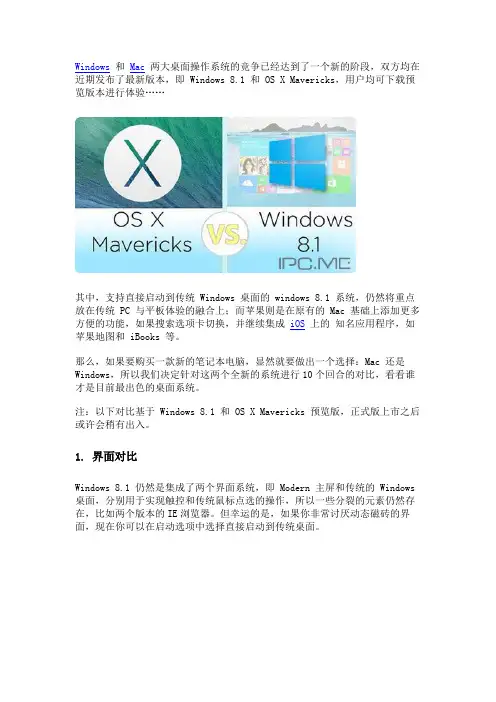
windows 7和MAC IOS 对比
- 格式:doc
- 大小:50.50 KB
- 文档页数:6
Win7和ios对比
计算机科学与技术
夏静
2012年11月30日
众所周知,关于这个标题的争论已经持续了很长时间,因此引发的商战也久久不休,对此争辩,我不想多言。我个人认为各有所长,不分伯仲。下面我简单介绍一下这两个系统的特点,做一下细微的对比。
一、 Personalize Windows 7
1、 Get your PC just the way you like it
Create the background you want
"Wouldn't it be nice if you could play a slide show of pictures as your desktop background?" my
husband asked wistfully as he booted up his PC for the first time.
Actually, you can. In fact, many themes automatically play a slide show of select images. That's
why, when you click Desktop Background in the Personalization window, you'll see a group of
pictures with check marks above them. This is how you choose what pictures to see.
Lots of different sounds, windows, and screen
savers
When I first installed Windows 7, I played with the sounds until my husband was blue in the face.
What I like about the 14 different sound schemes is that they all sound like the Windows default
sound scheme, but with a twist. For instance, the Sonata scheme sounds like classical violins,
while the Delta scheme sounds like a banjo.
Similarly, you can customize your window color and transparency, along with your screen saver,
using the buttons at the bottom of the Personalization window. After you've changed all these
areas to your liking, you've essentially created a new theme. And although you don't need to save
it to use your new theme, it's not a bad idea if you want to play around some more.
And really, who can resist? Certainly not me.
Making the screen more readable
I'm a laptop user. My screen is smaller than a typical monitor, which means that everything that
appears on it is smaller too. One feature I really appreciate is the fact that you can adjust
text size more easily. Windows 7 automatically selects the optimal display resolution for your
screen, but then you can also choose how big you want your font. (In previous versions of Windows,
you couldn't do this separately.) It's simple:
1. Right-click the desktop, and then click Personalize.
2. Click Display in the lower-left corner.
3. Choose to display fonts at 100 percent, 125 percent, or 150 percent.
Get more Windows 7 accessibility information, including tutorials and free step-by-step guides. Mini programs right where you want them
We live in Seattle, where it always rains. My husband likes to keep his eye on the weather forecast
just in case there's a two-minute sliver of sunshine in the day that he might possibly miss. That
would be tragic. Fortunately, there are gadgets.
Desktop gadgets are customizable mini programs that display information right on the desktop.
You don't have to open a new window or launch a new program because they run continuously. You
can view up-to-date news feeds, your calendar, games—or, in my husband's case—the weather. To
get gadgets:
1. Right-click the desktop, and then click Gadgets.
2. View available gadgets.
3. Drag gadgets anywhere onto your desktop.
Putting the "personal" in personal computer
These days, my husband has a desktop slide show set up with surfing pictures, while I have pictures
of my chickens (in the coop he built). He uses the Sonata sound theme, while I stick with Windows
Default.
He has about 40 gadgets on his desktop, all of which are completely necessary to his happiness.
I have two. Far be it for me to complain—he's gotten his new PC just the way he wants it.
Best yet, he's not using mine anymore.
Windows 7 features
Jump Lists—new in Windows 7—take you right to the documents, pictures, songs, or websites you
turn to each day. To open a Jump List, just right-click a program button on the Windows 7 taskbar.
(You can also get to Jump Lists by clicking the arrow next to the program name on the Start menu.)
What you see in a Jump List depends entirely on the program. The Jump List for Internet Explorer
shows frequently viewed websites. Windows Media Player 12 lists commonly played tunes. Is your
Jump List missing a favorite? You can "pin" whatever files you like there.
Jump Lists don't just show shortcuts to files. Sometimes they also provide quick access to commands
for things like composing new email messages or playing music.
In the future,I think the windows touch is more useful. Move over mouse: When you pair Windows
7 with a touchscreen PC, you can browse online newspapers, flick through photo albums, and shuffle
files and folders—using nothing but your fingers.
Limited one-finger touch capability has been available in Windows for years. But Windows 7 is
the first to fully embrace multitouch technology. Need to zoom in on something? Place two fingers
on the screen of a multitouch-compatible PC and spread them apart. To right-click a file, touch