
打印机编程手册1
- 格式:pdf
- 大小:7.46 MB
- 文档页数:61
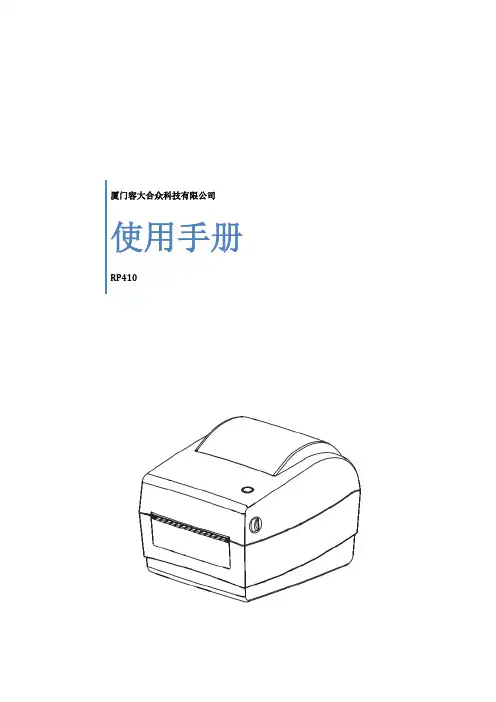

SP-L36热敏打印机使用说明书VER0.06北京思普瑞特科技发展有限公司目录注意事项 (1)安全注意事项 (1)使用注意事项 (1)存放注意事项 (2)第一章打印机外观及型号 (3)1.1外观 (3)1.2型号 (3)第二章性能特点 (3)2.1打印性能 (3)2.2物理参数 (4)2.3环境参数 (4)2.4其他性能 (4)第三章使用方法 (5)3.1使用前的准备 (5)3.1.1电池安装 (5)3.1.2打印纸卷安装 (6)3.1.2打印纸卷取下 (6)3.1.3其它 (7)3.2基本功能使用 (7)3.2.1开机 (8)3.2.2关机 (8)3.2.3自检测 (8)3.2.4走纸(手动进纸) (8)3.2.5十六进制打印 (9)3.2.6打印机参数设置 (9)3.2.7充电 (10)3.2.8进入程序升级模式 (10)3.3打印机参数设置 (11)3.4打印机标签传感器标定 (11)3.5打印机恢复默认配置 (12)3.6打印机连接及打印 (12)3.6.1USB连接 (12)3.6.2蓝牙连接 (13)3.6.3wifi连接 (14)3.7蜂鸣器说明 (14)3.8液晶显示说明 (14)第四章其他信息 (17)4.1指令编程手册 (17)4.2预印刷黑标说明 (17)4.3标签纸说明 (18)附录A (19)附录B (21)注意事项在使用打印机之前,请仔细阅读本章内容!安全注意事项本打印机只能使用本公司提供的专用电池和电源适配器,否则可能引起产品损坏,电池漏液、起火甚至爆炸。
不要将电池投入火中,不要将电池短路、拆散或加热,否则可能导致电池漏液、起火甚至爆炸。
如果长时间不使用打印机,务必将电池从打印机中取出,否则可能导致电池漏液。
电池中的液体具有腐蚀性,如果操作不慎导致电池漏液并将液体粘到皮肤或衣物上,请立即用清水洗掉,如不慎进入眼睛内,请立即用大量清水彻底冲洗眼睛并去看医生。
打印时或刚打印结束时不要开启纸仓盖,用手或身体的任何部位接触打印机芯,以免过高的温度导致烫伤。

SANEI Printer BrowserProgramming manualJAN 28, 2021 Rev1.0.0This manual provides information on the design guidelines concerning Sanei Printer Browser that customers need to build Web applications.Caution・Sanei Printer Browser is a copyrighted work of Sanei Electric Co., Ltd. (hereinafter referred to as Sanei Electric). Copyright and other rights concerning this product belong to Sanei Electric.・Sanei Electric does not guarantee the absence of defects in the Sanei Printer Browser and is not liable for any damages resulting from the use of the information contained in this manual.・Sanei Electric shall never be liable under any circumstances for any direct or indirect loss or damage in connection with the use of Sanei Printer Browser.Sanei Electric Co., Ltd.Unauthorized reproduction prohibited.The contents of this document are subject to change without notice.Android is a trademark of Google Inc.Table of Contents1. INTRODUCTION (3)2. OPERATING ENVIRONMENT (3)3. SUPPORTED PRINTERS (3)4. ABOUT API (4)5. API LIST (5)5-1. discoverUsbPrinter (7)5-2. discoverBlePrinter (7)5-3. discoverBthPrinter (8)5-4. connectUsbPrinter (8)5-5. connectBlePrinter (9)5-6. connectBthPrinter (9)5-7. connectNetworkPrinter (10)5-8. disconnectPrinter (10)5-9. isPrinterConnected (10)5-10. printString (10)5-11. printString (Encoding specified) (11)5-12. setFontStyle (11)5-13. setFontStyle (Underline thickness specified) (11)5-14. setFontType (11)5-15. setFontMagnification (12)5-16. setFontColor (12)5-17. setFontSmoothing (12)5-16. setAlignment (12)5-17. setCodePage (13)5-18. setInternationalChar (14)5-19. printBarcode (14)5-20. printQR (15)5-21. printPDF417 (15)5-22. setBarcodeModification (16)5-23. printBitmap (16)5-24. printBitmap (Print Position and dithering designation) (16)5-25. linefeed (16)5-26. paperFeed (17)5-27. printStringAndroidFont (17)5-28. initPrinter (17)5-29. startPageMode (17)5-30. endPageMode (18)5-31. setPageAttribute (18)5-32. getStatus (19)5-33. outputRawDataByte (20)5-34. outputRawDataBase64 (20)5-35. inputRawData (20)5-36. inputRawData (20)1. IntroductionThe SANEI Printer Browser is a browser app supportable to print directly from a web program (Javascript) to our printer.To prepare for using this browser app, you can download the sample program in the following URL.https://www.sanei-elec.co.jp/wp/wp-content/uploads/2021/02/sample.zipThis is a simple print sample using Javascript.This manual describes the command syntax for Javascript required for printing, referring to this sample program.2. Operating EnvironmentRuntime version: 1.8.0 or laterAndroid OS: Ver 7.1.1 or later3. Supported Printers★ Memory switch settingsSet the memory switch settings for all printer models as follows.OFFLINE BUSY = OFFAct. For Driver = INVALID4. About API(1) type of dataThe data handled by the Javascript API is number, strings, Boolean, and object.Character strings that are difficult to handle depending on the type of API are converted to JSON format or Base64 and used.(2) Calling APIThe API can be called easily by adding “Printer.” at the top of the call.No external library is needed to build this extension, and no preparation is required to call theAPI.(3) Get Return ValuesThe return value can be obtained directly from the API.The return value is mainly used after conversion because it is returned in JSON format or Base64.The Boolean can be used without conversion.5. API ListThe list of printer device functions is as follows.5-1. discoverUsbPrinterGet the name of the USB printer port that can be connected.function:Printer.discoverUsbPrinter(timeoutMillis)Argument:timeoutMillis Timeout period (milliseconds)Return value:USB printer port name in JSON format (array)Remarks:Return the obtained USB printer port name to its original form with "JSON.parse".Example:// Get USB Printer Port Namevar result = Printer.discoverUsbPrinter(0);//Converts the USB printer port name in JSON format to its original format.var printers = JSON.parse(result);// Get the first USB printer port name.var first_printer = printers[0];5-2. discoverBlePrinterGet the name of the Bluetooth (BLE) printer port that can be connected.function:Printer.discoverBlePrinter(timeoutMillis)Argument:timeoutMillis Timeout period (milliseconds)Return value:Bluetooth (BLE) printer port name in JSON format (array)Remarks:Return the obtained Bluetooth (BLE) printer port name to its original form with"JSON.parse".Example:// Get Bluetooth (BLE) Printer Port Namevar result = Printer.discoverBlePrinter(0);//Converts the Bluetooth (BLE) printer port name in JSON format to its original format.var printers = JSON.parse(result);// Get the first Bluetooth (BLE) printer port name.var first_printer = printers[0];Get the name of the Bluetooth (SPP) printer port that can be connected.function:Printer.discoverBthPrinter(timeoutMillis)Argument:timeoutMillis Timeout period (milliseconds)Return value:Bluetooth(SPP) printer port name in JSON format (array)Remarks:Return the obtained Bluetooth (SPP) printer port name to its original form with "JSON.parse".Example:// Get Bluetooth (SPP) Printer Port Namevar result = Printer.discoverBthPrinter(0);//Converts the Bluetooth (SPP) printer port name in JSON format to its original format.var printers = JSON.parse(result);// Get the first Bluetooth (SPP) printer port name.var first_printer = printers[0];5-4. connectUsbPrinterConnect to the specified USB printer port.function:Printer.connectUsbPrinter(printer)Argument:printer USB printer port name in JSON format.Return value:Returns the success or failure of the connection as a Boolean.true Successful connectionfalse Connection failedRemarks:Use "JSON. Stringify" to convert the USB printer port name to JSON format.Example://Converts USB printer port names to JSON format.var jprinter = JSON.stringify(printer);// Connect to USB printer portvar status = Printer.connectUsbPrinter(jprinter)Connect to the specified Bluetooth (BLE) printer port.function:Printer.connectBlePrinter(printer)Argument:printer Bluetooth (BLE) printer port name in JSON format.Return value:Returns the success or failure of the connection as a Boolean.true Successful connectionfalse Connection failedRemarks:Use "JSON. Stringify" to convert the Bluetooth (BLE) printer port name to JSON format.Example:// Converts Bluetooth (BLE) printer port names to JSON format.var jprinter = JSON.stringify(printer);// Connect to Bluetooth (BLE) USB printer portvar status = Printer.connectBlePrinter(jprinter)5-6. connectBthPrinterConnect to the specified Bluetooth (SPP) printer port.function:Printer.connectBthPrinter(printer)Argument:printer Bluetooth (SPP) printer port name in JSON format.Return value:Returns the success or failure of the connection as a Boolean.true Successful connectionfalse Connection failedRemarks:Use "JSON. Stringify" to convert the Bluetooth (SPP) printer port name to JSON format.Example:// Converts Bluetooth (SPP) printer port names to JSON format.var jprinter = JSON.stringify(printer);// Connect to Bluetooth (SPP) printer portvar status = Printer.connectBthPrinter(jprinter)5-7. connectNetworkPrinterConnect to the specified network printer port.function:Printer.connectNetworkPrinter (address,port)Argument:address IP address (string)port Port number (number)Return value:Returns the success or failure of the connection as a Boolean.true Successful connectionfalse Connection failed5-8. disconnectPrinterDisconnect the connected printer port.function:Printer.disconnectPrinter()Argument:NoneReturn value:None5-9. isPrinterConnectedCheck the printer port connection.function:Printer.isPrinterConnected()Argument:NoneReturn value:Returns the current connection state as a Booleantrue Connectedfalse Not connected5-10. printStringSpecifies the character string and prints out the printer font.function:Printer.printString(text)Argument:text Specify the character string to be printed in Unicode.Return value:None5-11. printString (Encoding specified)Prints a character string with encoding specified in the printer font.function:Printer.printString(text,charname)Argument:text Character stringcharname String encoding nameReturn value:NoneRemarks:Charname specifies the encoding name to use in Java.Example. Specify an encoding name such as "UTF-8", "SJIS", etc. as a string.5-12. setFontStyleSets character modifiers for the printer fonts.function:Printer.setFontStyle(bold,italic,underline)Argument:bold Specification (true) or cancellation (false) of bold typefaceitalic Specification (true) or cancellation (false) of italic typefaceunderline Specification (true) or cancellation (false) of underlining Return value:None5-13. setFontStyle (Underline thickness specified)Sets character modifiers for the printer fonts. (Underline thickness specified)function:Printer.setFontStyle(bold,italic,underline,dotpitch)Argument:bold Specification (true) or cancellation (false) of bold typefaceitalic Specification (true) or cancellation (false) of italic typefaceunderline Specification (true) or cancellation (false) of underliningdotpitch Underline thickness specifies 0 to 7 dots.Return value:None5-14. setFontTypeSets the printer font type.function:Printer.setFontType(compact)Argument:compact Specification (true) or cancellation (false) of small font (Font B).Return value:None5-15. setFontMagnificationSets the printer font size (vertical multiple and horizontal multiple).function:Printer.setFontMagnification (horizontalRation, verticalRatio)Argument:horizontalRatio Specification of the horizontal multiple between 1 to 8 verticalRatio Specification of the vertical multiple between 1 to 8.Return value:None5-16. setFontColorSpecifies or cancels white/black inversion for printer fonts.function:Printer.setFontColor(reverse)Argument:reverse Specification (true) or cancellation (false) of white/black inversion Return value:None5-17. setFontSmoothingSpecifies or cancels smoothing of printer fonts.function:Printer.setFontSmoothing(smoothing)Argument:smoothing Specification (true) or cancellation (false) of smoothingReturn value:None5-16. setAlignmentSpecifies the print position for print data (left alignment, centering, and right alignment).function:Printer.setAlignment(alignment)Argument:alignmentReturn value:None5-17. setCodePageSpecifies the code page for the printer font.function:Printer.setCodePage(codePage) Argument:codepageReturn value:None5-18. setInternationalCharSpecifies the international character for the printer font.function:Printer.setInternationalChar(internationalCharset)Argument:internationalCharsetReturn value:None5-19. printBarcodePrints the 1D barcode.function:Printer.printBarcode(barcodeSystem,barcodeData) Argument:barcodeSystembarcodeData Barcode data Return value:None5-20. printQRPrints the QR code.function:Printer.printQR(size,eccLevel,barcodeData)Argument:size Specify the symbol size (1 to 40).eccLevel Specify the error control level (1 to 4).1: L (7%)2: M (15%)3: Q (25%)4: H (30%)barcodeData Barcode dataReturn value:None5-21. printPDF417Prints the PDF417.function:Printer.printPDF417(truncate,binaryEncode,eccLevel,size,barcodeData)Argument:truncate Specify (true) of not specify (false) as (compact) PDF417binaryEncode Byte encoding mode (true) or automatic encoding mode (false)eccLevel The error correction level (0 to 7) is specified.size The barcode size is specified as shown in the combination table.barcodeData Barcode dataReturn value:None5-22. setBarcodeModificationSets the 1D barcode modification information (height, HRI characters).function:Printer.setBarcodeModification (hri,width,height)Argument:hri HRI character modification.Width The barcode module width (1 to 4) is specified.Height The barcode height (1 to 255 dot pitch) is specified.Return value:None5-23. printBitmapConverts the bitmap data specified by Base64 character string to bit image command and prints it.function:Printer.printBitmap(data)Argument:data Specify the bitmap data (Base64 string).Return value:None5-24. printBitmap (Print Position and dithering designation)Converts the bitmap data specified by Base64 character string to bit image command and prints it.function:Printer.printBitmap(data,align,dither)Argument:data Specify the bitmap data (Base64 string).align Specify the print position (Left, Center, Right).dither Specify dithering (true) or not (false)Return value:None5-25. linefeedSpecified number of carriage return (line feeds) is executed.function:Printer.lineFeed(lines)Argument:lines Number of carriage returns (line feeds) is specified (1 to 255).Return value:None5-26. paperFeedExecutes paper feeding the specified number of dot lines.function:Printer.paperFeed(lines)Argument:lines Paper feed is specified by a dot pitch value of -255 to 255.If the parameter is negative, the command executes printing and reversepaper feeding.If the parameter is an integer, printing and forward paper feeding areexecuted.Return value:NoneRemarks:In the standard mode, the data in the line buffer is printed, and the paper is fed forward by the specified dot pitch.In page mode, the data is shifted in the y-axis direction by the specified dot pitch.5-27. printStringAndroidFontConverts the specified character string into Android font and prints in bit image format.function:Printer.printStringAndroidFont(text, x, y, textSize)Argument:text Character string is specified.x Horizontal print positiony Vertical print positiontextSize Specify Character Size (Unit: SP).Return value:NoneRemarks:SP = Scale-independent pixel5-28. initPrinterModification information set in the printer is initialized.function:Printer.initPrinter()Argument:NoneReturn value:None5-29. startPageModeShift from standard mode to page mode.function:Printer.startPageMode()Argument:NoneReturn value:None5-30. endPageModeThe specified area of page memory is printed and the page mode is shifted to standard mode.function:Printer.endPageMode()Argument:NoneReturn value:None5-31. setPageAttributeSets the page mode attribution information (printing direction and printing area).function:Printer.setPageAttribute(x,y,width,height,direction)Argument:x Starting point of the print area (x axis)y Starting point of the print area (y axis)width Horizontal width of the starting point of the print area (x axis)height Height of the starting point of the print area (y axis)direction Direction of expansion within the print areaReturn value:NoneRemarks:The print area can be specified any number of times until the page mode is printed.When printing in page mode, the printer automatically prints within the maximumprint area at that time.The specified range of the print area depends on the printer model and memoryswitch settings.5-32. getStatusGets the printer status.function:Printer.getStatus()Argument:NoneReturn value:JSON format Status.Remarks:The acquired status is restored to its original format by "JSON.parse" and used.Refer to the command reference GS R1 command for the specification of thestatus value.Example://Get the statusvar result = Printer.getStatus();//Converting a Retrieved JSON Status to Original Formatvar status = JSON.parse(result);switch (status.status1) {case 82: //Ascii code ’R’buffer+= "Status1: WAITING<br>";break;case 66: // Ascii code ’B’buffer+= "Status1: MOVING<br>";break;case 69: // Ascii code ’E’buffer+= "Status1: ERROR<br>";break;default:buffer+= "Status1: " + status.status1 + "<br>";}5-33. outputRawDataByteSends binary data (1-Byte) to the printer port.function:Printer.outputRawDataByte(byte)Argument:byte 1-byte binary dataReturn value:None5-34. outputRawDataBase64Sends binary data (Base64 strings) to the printer port.function:Printer.outputRawDataBase64(base64)Argument:base64 Base64 strings binary dataReturn value:None5-35. inputRawDataGets binary data (1-Byte) from the printer port.function:Printer.inputRawData(timeoutMillis)Argument:timeoutMillis Specify the timeout period (in milliseconds) Return value:1-byte binary data5-36. inputRawDataGets binary data (Base64 strings) from the printer port.function:Printer.inputRawData(timeoutMillis,size)Argument:timeoutMillis Specify the timeout period (in milliseconds)Size Specify the size to receiveReturn value:Base64 strings binary data。