SAP专业教材资料Tcode专题
- 格式:doc
- 大小:185.50 KB
- 文档页数:7
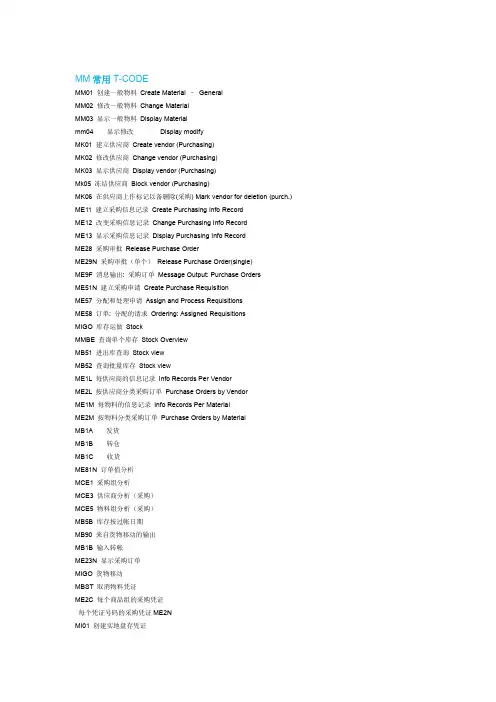
T-CODE 专题Posted by neweryeah under [ SAP 其他][ (0) 评论] | [ (0) 引用]什么是T-CODE如何使用T-CODE怎样快速找到T-CODE你在这里将找到答案Overview(概述)A transaction code is a four-character command that tells the system location of a task. Each SAP screen has a unique transaction code. A transaction code may contain only letters such as zstm or a combination of letters and numbers such as me51.In SAP, you can use transaction codes as a shortcut or alternative to using the navigation path to get to a system task. Type /n followed by the transaction code and press the Enter/Return key.For example, instead of following the navigation path User Menu >> Role ZMIT>> Purchasing >> Requisitions >> Create a Requisition from the SAP User Menu screen, you can type /nme51 in the Command field of any screen. In either case, the "Create: Purchase Requisition: Initial Screen" is displayed.Using a Transaction Code(使用T-CODE)OverviewA transaction code is a four-character command that tells the system location of a task. Each SAP screen has a unique transaction code. A transaction code may contain only letters such as zstm or a combination of letters and numbers such as me51.In SAP, you can use transaction codes as a shortcut or alternative to using the navigation path to get to a system task. Type /n followed by the transaction code and press the Enter/Return key.For example, instead of following the navigation path User Menu >> Role ZMIT>> Purchasing >> Requisitions >> Create a Requisition from the SAP User Menu screen, you can type /nme51 in the Command field of any screen. In either case, the "Create: Purchase Requisition: Initial Screen" is displayed.topUsing a Transaction Code1. Place the cursor in the Command field. (The Command field is located in the Toolbar, see Getting Started: SAP Screens.)2. Type /n to end the current task, followed by the transaction code.For example, to start creating a requisition type /nme51.3. Press the Enter/Return key.Result: The "Create: Purchase Requisition: Initial Screen" is displayed.Listed below are the commands used in combination with the transaction codes.Command + TransCodeDescription/n + Transaction code End current system task and go to new system task/o + Transaction code Create a new session and go to new system task withoutclosing prior session/o List open sessions/i or /nend Log offNote The /nzmit transaction code is no longer available for accessing the MIT FinancialSystem screen.topFinding a Transaction Code(寻找T-CODE)There are several ways to find the transaction code for an SAP screen.On the SAP menu screens1. To display an individual transaction code, place the cursor on the transaction item in a menu folder.2. Follow the menu path: Extras >> Technical details.Result: The transaction code is listed at the top of the dialog box that appears.1. To display transaction codes for all the transactions listed in the menu folder, follow the menu path:Extras >> Settings.2. Select Show technical name.Result: The dialog box closes. The transaction code is displayed in front of the transaction item when you access it from the menu folder.topOn Other SAP screens•Follow the menu path: System >> Status.Result: In the SAP data section of the screen, the Transaction field displays the transaction code. In this case, it would be me51.•In the Status Bar at the bottom of the screen, click the Tab List button to the right of the client number. See below.Result: A box similar to the following pops up.Mac screen:PC screen:Click on Transaction.Result: The transaction code for the current screen is displayed in the Status Bar next to the Tab List button .topDisplaying a List of Recently Used Transaction Codes (for the PC only)1. Click on the Selection List button located in the right corner of the Command field.Result: A list of the transaction codes that you recently typed in is displayed.2. To use a transaction, click on the transaction code. It appears in the Command field.3. Press the Enter/Return key or click the Enter button .1. Place the cursor in the Command field. (The Command field is located in the Toolbar, see Getting Started: SAP Screens.)2. Type /n to end the current task, followed by the transaction code.For example, to start creating a requisition type /nme51.3. Press the Enter/Return key.Result: The "Create: Purchase Requisition: Initial Screen" is displayed.Listed below are the commands used in combination with the transaction codes.Command + TransCodeDescription/n + Transaction code End current system task and go to new system task/o + Transaction code Create a new session and go to new system task withoutclosing prior session/o List open sessions/i or /nend Log offNote The /nzmit transaction code is no longer available for accessing the MIT FinancialSystem screen.topFinding a Transaction CodeThere are several ways to find the transaction code for an SAP screen.On the SAP menu screens1. To display an individual transaction code, place the cursor on the transaction item in a menu folder.2. Follow the menu path: Extras >> Technical details.Result: The transaction code is listed at the top of the dialog box that appears.1. To display transaction codes for all the transactions listed in the menu folder, follow the menu path:Extras >> Settings.2. Select Show technical name.Result: The dialog box closes. The transaction code is displayed in front of the transaction item when you access it from the menu folder.On Other SAP screens•Follow the menu path: System >> Status.Result: In the SAP data section of the screen, the Transaction field displays the transaction code. In this case, it would be me51.•In the Status Bar at the bottom of the screen, click the Tab List button to the right of the client number. See below.Result: A box similar to the following pops up.Mac screen:PC screen:Click on Transaction.Result: The transaction code for the current screen is displayed in the Status Bar next to the Tab List button .Displaying a List of Recently Used Transaction Codes (for the PC only)1. Click on the Selection List button located in the right corner of the Command field.Result: A list of the transaction codes that you recently typed in is displayed.2. To use a transaction, click on the transaction code. It appears in the Command field.3. Press the Enter/Return key or click the Enter button .。