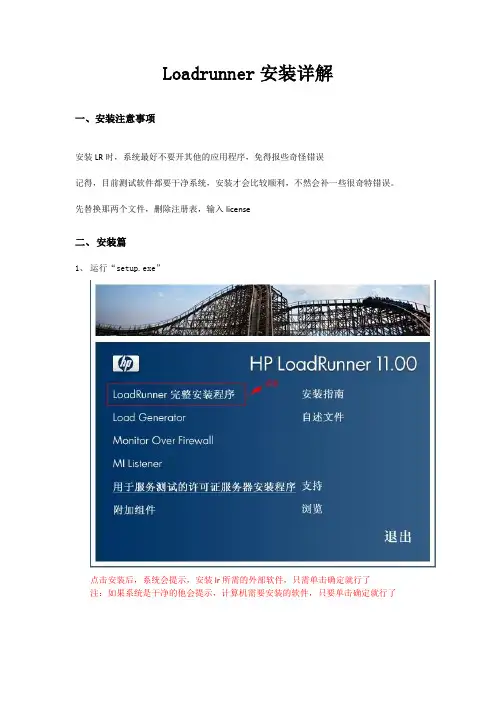
Installing e.Report Designer ProfessionalThis documentation has been created for software version 11.0.5.It is also valid for subsequent software versions as long as no new document version is shipped with the product or is published at https://.Open Text Corporation275 Frank Tompa Drive, Waterloo, Ontario, Canada, N2L 0A1Tel: +1-519-888-7111Toll Free Canada/USA: 1-800-499-6544 International: +800-4996-5440Fax: +1-519-888-0677Support: https://For more information, visit https://Copyright © 2017 Actuate. All Rights Reserved.Trademarks owned by Actuate“OpenText” is a trademark of Open Text.DisclaimerNo Warranties and Limitation of LiabilityEvery effort has been made to ensure the accuracy of the features and techniques presented in this publication. However, Open Text Corporation and its affiliates accept no responsibility and offer no warranty whether expressed or implied, for the accuracy of this publication.Document No. 170215-2-130510February 15, 2017ContentsIntroduction. . . . . . . . . . . . . . . . . . . . . . . . . . . . . . . . . . . . . . . . . . . . . . . . . . .iii Understanding ActuateOne . . . . . . . . . . . . . . . . . . . . . . . . . . . . . . . . . . . . . . . . . . . . . . . . . . . . . . . . .iii About the Actuate e.Report Designer Professional documentation . . . . . . . . . . . . . . . . . . . . . . . .iv Accessing examples . . . . . . . . . . . . . . . . . . . . . . . . . . . . . . . . . . . . . . . . . . . . . . . . . . . . . . . . . . . . .vi Obtaining documentation . . . . . . . . . . . . . . . . . . . . . . . . . . . . . . . . . . . . . . . . . . . . . . . . . . . . . . . .vi Using PDF documentation . . . . . . . . . . . . . . . . . . . . . . . . . . . . . . . . . . . . . . . . . . . . . . . . . . . . . . . .vi Obtaining late-breaking information and documentation updates . . . . . . . . . . . . . . . . . . . . . .vi Obtaining technical support . . . . . . . . . . . . . . . . . . . . . . . . . . . . . . . . . . . . . . . . . . . . . . . . . . . . . . . . vii About supported and obsolete products . . . . . . . . . . . . . . . . . . . . . . . . . . . . . . . . . . . . . . . . . . . . . vii Typographical conventions . . . . . . . . . . . . . . . . . . . . . . . . . . . . . . . . . . . . . . . . . . . . . . . . . . . . . . . . . vii Syntax conventions . . . . . . . . . . . . . . . . . . . . . . . . . . . . . . . . . . . . . . . . . . . . . . . . . . . . . . . . . . . . . . .viii Installing e.Report Designer Professional . . . . . . . . . . . . . . . . . . . . . . . . . . 1 About Actuate e.Report Designer Professional . . . . . . . . . . . . . . . . . . . . . . . . . . . . . . . . . . . . . . . . . 1 Installing Actuate e.Report Designer Professional . . . . . . . . . . . . . . . . . . . . . . . . . . . . . . . . . . . . . . 2 Starting e.Report Designer Professional . . . . . . . . . . . . . . . . . . . . . . . . . . . . . . . . . . . . . . . . . . . . . . . 7 Starting Information Object Designer . . . . . . . . . . . . . . . . . . . . . . . . . . . . . . . . . . . . . . . . . . . . . . . . . 7 Updating online documentation and localization resources . . . . . . . . . . . . . . . . . . . . . . . . . . . . . . 8 Index . . . . . . . . . . . . . . . . . . . . . . . . . . . . . . . . . . . . . . . . . . . . . . . . . . . . . . . . 9iiiI n t r o d u c t i o nUnderstanding ActuateOneActuateOne™ includes the Release 11 series of Actuate® Corporation’svalue-added products for the Eclipse BIRT open source project. ActuateOneinstitutes a paradigm shift in Business Intelligence technology fromindividualized tools to a suite of integrated capabilities within a singleenvironment. ActuateOne is one designer, one server, one integratedenvironment providing a single unified user experience. A common architectureis precisely what today’s information-rich global environment requires fordevelopment and deployment. This unified Actuate technology continues toenable information management and delivery while supporting advancedsecurity, massive scalability, flexibility through programming, and reuse.ActuateOne realizes our corporate vision of a single user experience by providingextended new analytics capabilities reaching a broader spectrum of users. Thenew dashboard functionality supports building gadgets to enhance the visualpresentation of information. Export to Excel® and other formats integratesActuate output with other tools on the end-user desktop. Actuate’s cloud-readyserver supports elastic clustering for dynamic provision of uninterrupted efficientservice.Information, live demos, and endorsements about this release are available from and . The Actuate site also makes “The ForresterWave™: Open Source Business Intelligence (BI), Q3 2010” report freely available.The report recognizes Actuate and its value-added offerings for BIRT as a leaderin Open Source Business Intelligence.I n t r o d u c t i o n iiiAbout the Actuate e.Report Designer Professional documentationThe documentation includes the materials described in Table I-1. You can obtainHTML and PDF files from . Documentation updates arecreated in response to customer requirements.The documentation for e.Report Designer Professional also includes theprogramming materials described in Table I-2.Table I-1Product documentationFor information about this topic See the following resourceDocumentation updates Updated HTML and PDF filesposted on .Installing Actuate e.Report Designer ProfessionalOverview of Actuate reporting concepts Designing reports using the graphical user interface and programming capabilities of e.Report Designer ProfessionalOverview of data access concepts Accessing data from databases, information objects, text files, Actuate Query output, and ODBC data sources Overview and reference guide for creating a driver to access custom data sourcesViewing and searching Actuate Basic reports using the DHTML viewerDeveloping Actuate Basic Reports using Actuatee.Report Designer Installinge.Report Designer ProfessionalDeveloping Actuate Basic Reports using Actuatee.Report Designer Developing Actuate Basic Reports using Actuatee.Report Designer Developing Reports using e.Report Designer Professional Accessing Data using e.Report Designer ProfessionalWorking with Actuatee.Reportsiv I n s t a l l i n g e.R e p o r t D e s i g n e r P r o f e s s i o n a lI n t r o d u c t i o n vFormatting report data for multiple localesReport encodingDesigning reports with right-to-left orientationOverview of Actuate information object conceptsCreating information objects, projects, connection definitions, and maps Building and publishing projects Actuate SQL reference information Configuring database types GlossaryTable I-2Programming documentationFor information about this topic See the following resourceOverview of Actuate Foundation ClassesOverview of how to work with classes and objectsReference for Actuate Foundation Classes, including class inheritance, hierarchy, and descriptions ofproperties, variables, and methods Overview of Actuate Basic syntax and coding conventionsWorking with Actuate Basic variables, data types, and procedures Reference for Actuate Basicprogramming, including descriptions of statements, functions, data types, keywords, and operatorsTable I-1Product documentationFor information about this topic See the following resourceWorking in Multiple Locales using Actuate Basic TechnologyDesigning BIRTInformation ObjectsActuate GlossaryProgramming with Actuate Foundation ClassesProgramming with Actuate BasicAccessing examplesThe Examples folder in the product directory contains report examples. Eachsample report folder contains a variety of files, often including a text file thatdiscusses how the example works.Obtaining documentationActuate e.Report Designer Professional uses documentation hosted on your localsystem. Install the documentation from the downloadedActuateLocalizationandOnlineDocumentation.exe. You can also view PDF orHTML versions of the documentation from .Using PDF documentationIn each book, the table of contents and the index page numbers contain links tothe corresponding topics in the text. In the table of contents, you access the link bypositioning the pointer over the topic. In the index, you access the link bypositioning the pointer over the page number.The ACTUATE_HOME\Manuals directory contains a file, master-index.pdx,which is an Adobe Acrobat Catalog utility that can search all the documents inthe Actuate Manuals directory. This tool provides a convenient way to find aparticular topic in Actuate documentation.Obtaining late-breaking information anddocumentation updatesThe release notes contain late-breaking news about Actuate products andfeatures. The release notes are available on OpenText My Support at the followingURL:https://A new user must first register on the site and log in to view the release notes.Updates to documentation in PDF form are available on OpenText My Support orat the following URL:Alternatively, after installing Actuate Release 11 products, use Start➛Programs➛Actuate11➛Update Documentation to access this URL.vi I n s t a l l i n g e.R e p o r t D e s i g n e r P r o f e s s i o n a lObtaining technical supportYou can contact customer support by submitting a ticket. To submit a ticket, go tothe following URL:https://About supported and obsolete productsThe Actuate Support Lifecycle Policy and Supported Products Matrix areavailable on OpenText My Support. You can access this site at the following URL:https://Typographical conventionsTable I-3 describes the typographical conventions in this document.Table I-3Typographical conventionsItem Convention ExampleCode examples Monospace Dim Text1 As StringFile names Initial capital letter, exceptwhere file names arecase-sensitiveDetail.roiKey combination A + sign between keysmeans to press both keysat the same timeCtrl+ShiftMenu items Capitalized, no bold FileSubmenu items Separated from the menuitem by a small arrowFile➛NewUser input or userresponseMonospace M*16*User input in XML and Java code Monospace italics chkjava.execab_name.cabI n t r o d u c t i o n viiSyntax conventionsTable I-4 describes the symbols used to present syntax.Table I-4Syntax conventionsSymbol Description Example[]Optional item[Alias<alias name>]Array subscript matrix[]{}Groups two or moremutually exclusiveoptions or argumentswhen used with a pipe{While | Until}Defines array contents{0, 1, 2, 3}Delimiter of code block public ACJDesigner(){}|Separates mutuallyexclusive options orarguments in a group Exit {Do | For | Function | Sub}Java OR operator int length | 4<>Argument you mustsupply<expression to format>Delimiter in XML<xsd:sequence>viii I n s t a l l i n g e.R e p o r t D e s i g n e r P r o f e s s i o n a lI n s t a l l i n g e.R e p o r tD e s i g n e r P r o f e s s i o n a lAbout Actuate e.Report Designer ProfessionalActuate e.Report Designer Professional is a report designer for report developerswho design, build and distribute structured content. e.Report DesignerProfessional supports beginning report developers and experienced reportdevelopers who leverage programming.This chapter describes how to install Actuate e.Report Designer ProfessionalRelease 11 series. Installing Actuate e.Report Designer Professional also installsActuate BIRT Information Object Designer. To overwrite an existing InformationObject Designer installation during the e.Report Designer Professionalinstallation, you must instruct InstallShield™ Wizard to install e.Report DesignerProfessional in the directory that contains the Information Object Designerdirectory. For example, if the Information Object Designer installation is locatedin the C:\MyActuate\IOD directory, specify the following directory for thee.Report Designer Professional installation:C:\MyActuate\eRDProIf you specify a different directory from the one that contains the InformationObject Designer’s installation directory, e.Report Designer Professional’sinstallation installs another instance of Information Object Designer. If you laterchoose to uninstall Information Designer, both instances of Information ObjectDesigner are removed from the system.The Release 11 series software does not use configuration information from aprevious release. For information about upgrading, see Release Notes for thecurrent release.I n s t a l l i n g e.R e p o r t D e s i g n e r P r o f e s s i o n a l1Installing Actuate e.Report Designer Professional Make sure the user account you use to install e.Report Designer Professional is amember of the Administrators group.Before you install Actuate e.Report Designer Professional, close all Actuateapplications and stop Actuate services.How to install e.Report Designer Professional1Log in to Windows as Administrator.2Double-click ActuateeReportDesignerProfessional.exe. InstallShield Wizard extracts the files necessary to install e.Report Designer Professional on yourcomputer. After a few moments, Welcome to the InstallShield Wizard forActuate e.Report Designer Professional appears, as shown in Figure1-1.Choose Next.Figure1-1Starting the InstallShield Wizard for Actuate e.Report DesignerProfessional3In License Agreement, read the agreement. Select I accept the terms of the license agreement, as shown in Figure1-2. Then, choose Next.2I n s t a l l i n g e.R e p o r t D e s i g n e r P r o f e s s i o n a lI n s t a l l i n g e.R e p o r t D e s i g n e r P r o f e s s i o n a l 3Figure1-2Accepting the license agreement4In Setup Type, select Typical. The default program location is C:\Program Files (x86)\Actuate11\eRDPro appears as shown in Figure 1-3. Choose Next.Figure 1-3Selecting the typical setup type4I n s t a l l i n g e.R e p o r t D e s i g n e r P r o f e s s i o n a lIn Locale Information, select a locale. The illustrations in this manual use the English (United States) locale, as shown in Figure 1-4. The computer’s operating system language and regional settings must be compatible with the default locale settings you configure during installation. Choose Next.Figure1-4Selecting the US English locale 5In Start Copying files, verify the program components to be installed, as shown in Figure 1-5. Then, choose Next.Figure 1-5Verifying program components before copying filesI n s t a l l i n g e.R e p o r t D e s i g n e r P r o f e s s i o n a l 5Setup Status displays messages about the progress of the installation. First, the wizard installs Actuate Information Object Designer, as shown in Figure 1-6.Figure1-6Monitoring the installation of Information Object DesignerThen, the wizard installs Actuate e.Report Designer Professional, as shown in Figure 1-7.Figure 1-7Monitoring the installation of e.Report Designer Professional6I n s t a l l i n g e.R e p o r t D e s i g n e r P r o f e s s i o n a l6The final step of the installation depends on whether Windows determines that a reboot is necessary:■If prompted to view the ReadMe file, choose No.To complete the installation wizard, select No, I will restart my computer later, as shown in Figure 1-8. Then, choose Finish.■If a reboot is not required, clear I would like to view the ReadMe file, as shown in Figure 1-8. Then, choose Finish to exit the installation wizard.Figure 1-8Selecting not to view the ReadMe file 7In the message that states how you access documentation, similar to the one in Figure 1-9, choose OK.Figure 1-9Documentation information messageHow to use online documentation on your local systemActuate products access HTML-format documentation from the web. If you do not have web access or prefer to use documentation hosted on your local system, perform the following steps:1Close e.Report Designer Professional.2Choose Start➛Programs➛Actuate 11➛Update Documentation.3Follow the instructions to install the online documentation, including online help and PDF files of the product manuals.4Choose Start➛Programs➛Actuate 11➛Switch Help Location <Service Pack>.5In Switch Help Location <Service Pack>, select Use local help. Then, choose OK. When you open e.Report Designer Professional, it accesses online helpfrom the local system.Starting e.Report Designer ProfessionalTo start e.Report Designer Professional from the Start menu, you must right-clickthe Start menu item and choose Run as administrator.To set the executable file to always run as Administrator for every user who usesthe computer, log in to Windows as an administrator-level user and perform thefollowing steps:1Navigate to the \Program Files (x86)\Actuate11\eRDPro\bin folder.2Right-click erdpro.exe. Choose Properties.3In erdpro.exe Properties, choose Compatibility. In Compatibility, choose Change settings for all users.4In erdpro.exe Properties—Compatibility for all users, select Run this program as an administrator. Choose OK.5In erdpro.exe Properties, choose OK.Starting Information Object DesignerIf you are using the standalone Information Object Designer that installs withe.Report Designer Professional, to start Information Object Designer from theStart menu, you must right-click the Start menu item and choose Run asadministrator. Alternatively, start Information Object Designer from a commandprompt using the following command:\Program Files (x86)\Actuate11\IOD\IOD.exe -data <path toworkspace>For example:\Program Files (x86)\Actuate11\IOD\IOD.exe -data C:/IODWorkspaceI n s t a l l i n g e.R e p o r t D e s i g n e r P r o f e s s i o n a l7To set the executable file to always run as Administrator for every user who usesthe computer, log in to Windows as an administrator-level user and perform thefollowing steps:1Navigate to the \Program Files (x86)\Actuate11\IOD folder.2Right-click iod.exe. Choose Properties.3In iod.exe Properties, choose Compatibility. In Compatibility, choose Change settings for all users.4In iod.exe Properties—Compatibility for all users, select Run this program as an administrator. Choose OK.5In iod.exe Properties, choose OK.Updating online documentation and localization resourcesBoth documentation and localization resource file updates can become availablebetween releases. The Actuate Localization and Online Documentation Updatetool provides replacement files and additional files for PDF documentation,online help, and localization of installed Actuate products. The tool is availablefrom OpenText My Support at the following URL:https://Use the Actuate Localization and Online Documentation Update tool thatcorresponds to the release of your Actuate products. For example, if you haveActuate 11, install the Actuate Localization and Online Documentation Updatefor Release 11. If no update tool for your release appears on OpenTextMy Support, no updates exist for the release.8I n s t a l l i n g e.R e p o r t D e s i g n e r P r o f e s s i o n a lIndexAaccessingonline documentation visample reports vi ActuateeReportDesignerProfessional.exe2 ActuateLocalizationandOnlineDocumenta-tion.exe viAdobe Acrobat Catalog viCcurrent release iv, viDdocumentation ivconventions used in viiEe.Report Designer Professionaldocumentation for ivinstalling2–6overview1starting7erdpro.exe7example reports. See sample reports Examples directory viIindex (online documentation)vi installatione.Report Designer Professional2–6Information Object Designer1iod.exe8Llanguage settings4links vilocale settings4MManuals directory vimaster indexfinding viOonline documentation ivRregional settings4release notes iv, vireporting examples. See Examples directory reportsaccessing sample viRun as administrator command7Ssample reports vistartinge.Report Designer Professional7Information Object Designer7 supported products page viisyntax conventions (documentation)viiiTtypographic conventions (documentation)viiI n d e x910I n s t a l l i n g e.R e p o r t D e s i g n e r P r o f e s s i o n a l。