
Backup Exec 12 & Backup Exec System Recovery 8
- 格式:ppt
- 大小:4.63 MB
- 文档页数:38
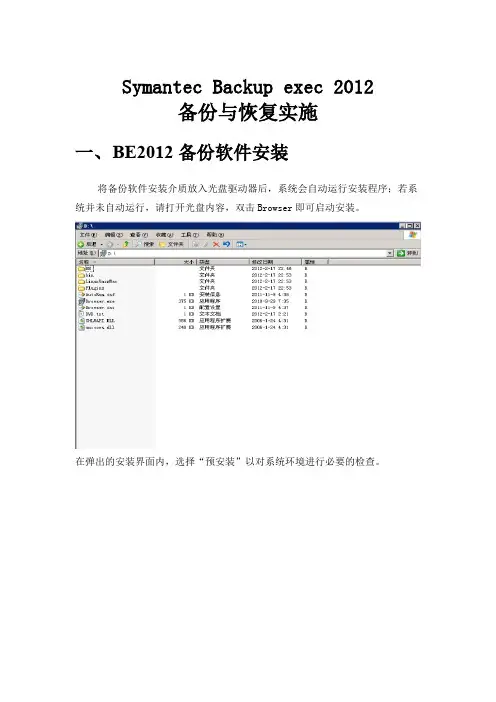
Symantec Backup exec 2012备份与恢复实施一、B E2012备份软件安装将备份软件安装介质放入光盘驱动器后,系统会自动运行安装程序;若系统并未自动运行,请打开光盘内容,双击Browser即可启动安装。
在弹出的安装界面内,选择“预安装”以对系统环境进行必要的检查。
选择需要进行环境检查的产品下一步,根据实际需要进行本地或远程环境检查环境检查结束后会弹出报告,浏览并确认环境就绪后可开始安装点击选择需要安装的部件,备份服务器选择Backup Exec,备份客户端选择Backup Exec Agent for Windows(这里环境为windows)选择同意授权后点击下一步继续根据实际需要选择典型安装或自定义安装后点击下一步,本系统选择自定义安装选择安装本地Backup Exec后点击下一步安装进程同样会进行安装环境监测,确认即可这是添加License的页面,为保护License信息,以下为未输入License状态由所输入License系统会自动勾选许可的选件选择安装语言选择安装路径输入具有administrators用户组权限的系统(域)用户名和密码,若该计算机并非域成员,则只需在域一栏下输入计算机主机名选择SQL Server实例安装路径,该实例由Backup Exec软件管理选择推荐设置,点击下一步继续确认安装摘要后点击安装开始安装进程安装过程备份软件服务器安装过程结束二、B E2012备份LINUX文件在备份服务器上添加linux备份客户机下一步,勾选允许Backup Exec与服务器建立信任添加linux客户端添加账户,用于建立信息关系,为linux系统root账户和密码完成即开始可对linux客户端设置备份作业,备份到磁带选择编辑设置备份作业,选择备份的文件选择确定,完成备份作业设置运行备份全备份作业完成备份三、B E2012恢复LINUX文件选择还原做文件的恢复选择还原的数据类型还原文件或者文件夹备份选择已备份的文件还原到其他位置下一步,默认即可下一步,默认下一步,完成设置还原作业运行验证还原结果,还原成功。
![176[1].BackupExec12最佳实践:MicrosoftSQL数据库服务器](https://imgs-1438308264.cos.ap-hongkong.myqcloud.com/75adea6b26284b73f242336c1eb91a37f11132cb.webp)
176[1].BackupExec12最佳实践:MicrosoftSQL数据库服务器Backup Exec 12 最佳实践:Microsoft SQL数据库服务器Best practices for Backup Exec 12 Agent for Microsoft SQL ServerDocument ID: 298297/doc/ef1b8f8d284ac850ac02420d.html /docs/298297 E-Mail this document to a colleagueBest practices for Backup Exec 12 Agent for Microsoft SQL ServerDetails:Best practices for Backup Exec 12 Agent for Microsoft SQL ServerBest practices include tips and recommendations to help you use Backup Exec 12 Agent for Microsoft SQL Server (SQL Agent) effectively. For more information about the SQL Agent, see the Backup Exec for Windows Servers Administrator’s Guide.The following best practices help you use the SQL Agent effectively:Back up the entire Microsoft SQL Server.Include the following in the backup job:o Full SQL database backupso Windows System Stateo System drive backups of the hard drive or drives where Microsoft SQL resideso System drive backups of the hard drive or drives where the Microsoft SQL databases resideExclude all database files from an anti-virus scan.Run a consistency check either before or after a SQL backup and after a SQL restore. If you back up a database, transaction log, or file group that contains errors, these errors still existwhen the backup is restored. In some cases, these errors can prevent a successful restore.Backup Exec lets you check the logical and physical consistency of the data before and after a backup. SQL reports any consistency check failures in the Backup Exec job log.Symantec recommends that you run regular database consistency checks to verify the integrity of the database.Use database, differential, and log backups to maximize your backup window. Combine these backup methods with backup strategies that address the following issues:o How much data loss can you accept if a failure happens between the time of the last backup and the time the loss occurred?o How many transactions are processed each day?o What are your users' expectations when a recovery is required? For example, do they expect a full recovery to the point at the time when the data loss occurred?o Use only the SQL Agent to perform SQL full, differential, and log backups. If you use a third-party application, Backup Exec fails the differential and log backup jobs until youmake a new full backup with the SQL Agent.The following best practices help you with security and database access with the SQL Agent:Ensure that the Windows user account that you use to back up the SQL instances has System Administrator privileges. Ensure that Backup Exec has rights to the following registry keys:o HKEY_LOCAL_MACHINE\Software\Microsoft\Microsoft SQL Servero HKEY_LOCAL_MACHINE\Software\Microsoft\MSSQLDo not apply the credentials that you use to make SQL backup and restore selections to an actual SQL instance. The credentials that you use to make SQL backup and restore selections must be applied to the Windows computer where SQL is installed.Note:If you use SQL-generated credentials, you must apply those credentials at the SQL instancelevel.Products Applied:Backup Exec for Windows Servers 12.0Last Updated: February 19 2008 10:37 PM GMTExpires on: 02-18-2009Subscribe to receive critical updates about this documentSubjects:Backup Exec for Windows ServersInformation Development: Best PracticesWindows 2000Information Development: Best PracticesWindows NT Small Business ServerInformation Development: Best PracticesWindows Server 2003Information Development: Best PracticesWindows Server 2008Information Development: Best PracticesWindows XPInformation Development: Best PracticesLanguages:English (US)Operating Systems:Windows 2000Professional, ServerWindows NT Small Business Server2000Windows XPPro 5.1, Pro 5.1 64 bit SP1, Pro 5.1 64 bit SP2, Pro 5.1 64-bit, Pro 5.1 SP1, Pro 5.1 SP2Windows Server 2003DataCenter, DataCenter (IA64), DataCenter (x64), DataCenter SP1, DataCenter SP1(IA64), DataCenter SP1(x64), DataCenter SP2, Datacenter SP2(x64), Enterprise (IA64), Enterprise (x64), EnterpriseSP1(IA64), Enterprise SP1(x64), Enterprise SP2, Enterprise SP2(x64), Enterprise Server, Enterprise ServerSP1, R2, Standard Server, Standard Server SP1, Standard Server SP1 (x64), Standard Server SP2, Standard Server SP2 (x64), Standard Server(x64), Storage Server, Storage Server SP1, Storage Server SP2, Web Server, Web Server SP1, Web Server SP2Windows Server 2008DataCenter (x64-64bit), DataCenter (x86-32bit), Enterprise (x64-64bit), Enterprise (x86-32bit), Itanium, Standard (x64-64bit), Standard (x86-32bit), Web Server (x64-64bit), Web Server (x86-32bit)Symantec World Headquarters:20330 Stevens Creek Blvd. Cupertino, CA 95014World Wide Web: /doc/ef1b8f8d284ac850ac02420d.html ,Tech Support Web: /doc/ef1b8f8d284ac850ac02420d.html ,E-Mail Support: /doc/ef1b8f8d284ac850ac02420d.html /email_forms,FTP: ftp:///doc/ef1b8f8d284ac850ac02420d.html or/doc/ef1b8f8d284ac850ac02420d.htmlTHE INFORMATION PROVIDED IN THE SYMANTEC SOFTWARE KNOWLEDGE BASE IS PROVIDED "AS IS" WITHOUT WARRANTY OF ANY KIND. SYMANTEC SOFTWARE DISCLAIMS ALL WARRANTIES, EITHER EXPRESS OR IMPLIED, INCLUDING THE WARRANTIES OF MERCHANTABILITY AND FITNESS FOR A PARTICULAR PURPOSE. IN NO EVENT SHALL SYMANTEC SOFTWARE OR ITS SUPPLIERS BE LIABLE FOR ANY DAMAGES WHATSOEVER INCLUDING DIRECT, INDIRECT, INCIDENTAL, CONSEQUENTIAL, LOSS OF BUSINESS PROFITS OR SPECIAL DAMAGES,EVEN IF SYMANTEC SOFTWARE OR ITS SUPPLIERS HAVE BEEN ADVISED OF THE POSSIBILITY OF SUCH DAMAGES. SOME STATES DO NOT ALLOW THE EXCLUSION OR LIMITATION OF LIABILITY FOR CONSEQUENTIAL OR INCIDENTAL DAMAGES SOTHE FOREGOING LIMITATION MAY NOT APPLY.。

BackupExec12.5++oracle数据库备份和恢复一、备份Oracle数据库在虚拟机上开两个操作系统,一台计算机名:vmtl(BE备份服务器),另一台计算机名:company-4unwlln(oracle客户端)在vmtl计算机上通过BE12备份company-4unwlln上的oracle 数据库1、在company-4unwlln计算机上打开oracle数据库并启动到归档模式,如图1-1开始—>运行—>cmd—>sqlplus空格/nolog —>conn空格/as 空格sysdba;—>startup;(打开oracle数据库)—>archive空格log 空格list;(查看oracle是否启动“存档模式”),若已是存档模式了就可以进行备份了图1-12、在vmtl计算机上打开BE,新建一个备份作业,选中要备份的数据库文件,如图1-2图1-23、选择“测试凭证”并测试如图1-3图1-34、选择“目标和介质”,选择备份存放的位置5、其它的根据情况要求再详细设置6、最后单击“立即运行”如图1-4图1-47、转到作业监视器上查看,如图1-5图1-58、备份成功二、恢复oracle数据库在虚拟机上开两个操作系统,一台计算机名:vmtl,另一台计算机名:company-4unwlln在vmtl计算机上用BE12恢复company-4unwlln上的oracle数据库,需要用到Backup Exec Remote Agent Utility1、在company-4unwlln上,用“shutdown immediate;”命令关闭数据库,如图2-1图2-12、将C:\oracle\product\oradata\thing1013目录下的所有文件删除。
3、用“startup nomount;”将数据库置于NOMOUNT状态图2-24、转到vmtl计算机上打开BE新建恢复作业,如图2-3图2-35、点击“立即运行”如图2-4图2-46、运行后出现以下错误如图2-5图2-57、转到company-4unwlln上重启数据库,同步日志后数据库。
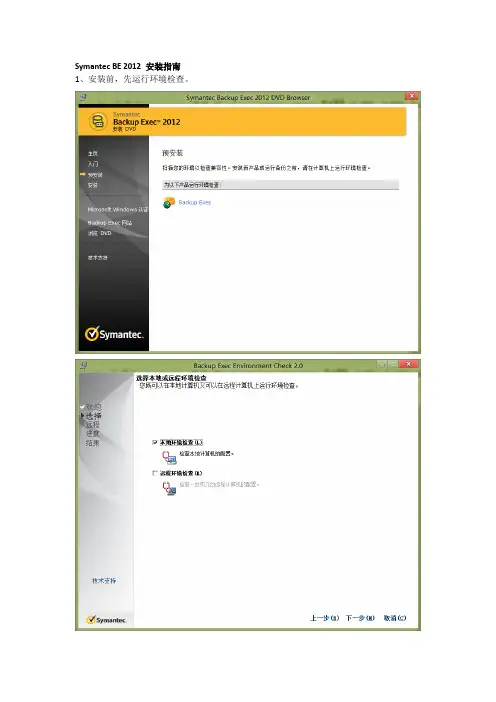
Symantec BE 2012 安装指南1、安装前,先运行环境检查。
2、检查完成,准备安装。
3、输入产品密钥
4、输入具有管理权限的账号密码
5、选择需要安装BE 代理软件的相关服务器。
(如SQL Server、Oracle Server等)
6、安装完成后,我们需要先配置存储,点击—》配置存储
7、选择存储类型
8、存储配置完成。
接下来,我们要创建备份。
9、点击“创建备份”,选择需要备份的服务器,这里我们选择SVR1
10、在服务器内容下面点编辑,就可以选择我们需要备份的各项内容。
11、选定备份的内容后,我们接着编辑备份计划的内容。
12、确定备份的相关内容之后按“确认”,就可以开始运行备份了。
13、备份完成。
14、现在我们来还原数据,在备份和还原选项点“还原”,此截图只用来做指导用,对应的应该是。
下一步,出现如下提示。
15、选择我们要还原的对象,勾中左边的方框。
16、选择需要还原的位置,一般情况下我们还原至原始位置就可以了。
17、选中“还原注册信息时”我们需要的要求。
下一步。
18、同样,按自己的需求选择。
如无特殊要求,直接下一步。
19、选中“立即运行”,下一步。
直接点完成。
21、提示还原完成,点确定,重启。
就可以恢复至当时备份的状态。