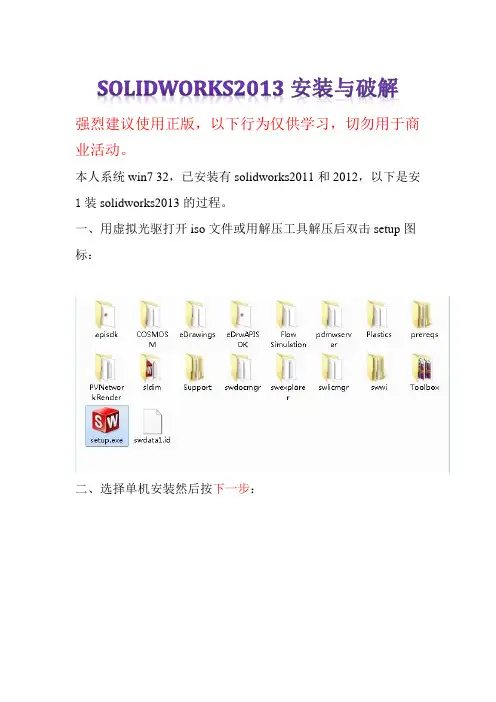
SolidWorks ® Education Edition 2013Installation InstructionsPreparation• Verify that your system meets the criteria specified in /System_Requirements .• Back up all SolidWorks files (parts, assemblies, and drawings, document templates, sheet formats, libraryfeatures, and form tools) before upgrading to SolidWorks 2013. Files you open and saved in SolidWorks 2013 cannot be opened in earlier versions.• To minimize disk space consumed, please consider uninstalling your older Education Edition and using anew installation of the new Education Edition product. If you uninstall the older version please be sure to also uninstall Simulation products, along with older versions of eDrawings, DWGeditor, etc.• Locate your Serial Number (S/N). The number typically begins with 9710 (Network) or 9700 (StandAlone). NEW Customer – S/N is located on the front of the box on a sticker. CURRENT Customer - S/N is located inside SolidWorks under HELP then ABOUT SOLIDWORKS. If you cannot find or you have misplaced your number, contact your local educational reseller to obtain one.• Before you uninstall a previous version of SolidWorks please make sure to transfer your license by going tohelp/transfer licenses.• Uninstall any alpha, beta, or pre-release versions of the SolidWorks software.Installation and Licensing ProcessYou are ready to begin your installation of theSolidWorks ® Education Edition!Network Users OnlySection 2Section 1Ver. 1STEPS FOR SECTION 1: NETWORK INSALLATION:1.Remove previous SolidNetWork License Managers2.Remove previous SolidWorks software3.Install 2013 SolidNetWork License Manager4.Activate 2013 Network License5.Install SolidWorks software on individual clientsSection 1 | SolidWorks® Education Edition Installation (Network)Note:If you are installing SolidWorks on a Network with Restricted Rights, please go to the Customer Portal for additional documentation or contact your local reseller for assistance.This step is only for users who are on NETWORK. If you purchased a Stand Alone, proceed to Section 2 in the installation process.Note:•All previous SolidWorks License Managers must be removed from your computer before beginning the installation of the new SolidWorks License Manager (i.e. 2012 must be removed before installing 2013).•The SolidWorks License Manager must be installed on the machine that will be used to distribute SolidWorks licenses on your network.•The SolidWorks License Manager for 2013 will license all SolidWorks EDU applications., including SolidWorks Simulaton, SolidWorks Sustainability, eDrawings and PhotoView 360.Remove previous SolidNetWork License Managersunch Add/Removeprograms and uninstall theprevious version of theinstallation Manager.Access Add/Removeprograms from Start >Control Panel >Add/Remove Programs.Locate the SolidWorksSolidNetWork LicenseManager and selectRemove.-Once the remove option is selected you will beprompted to confirm theproducts to uninstall.-The product will thenuninstall itself. A progressonly box will appear.-After the product uninstall iscomplete, close theAdd/Remove program swindow and launchWindows Explorer. Locatethe folder in which thelicense manager waspreviously installed to anddelete it. By default thelicense manager is installedto: C:\ProgramFiles\SolidWorksSolidNetWork LicenseManager.Remove previous SolidWorks Software1.If required, uninstall SolidWorks using Add/Remove Programs.2.If required, Delete SolidWorks folders located in C:\ Program Files\SolidWorks CorpBegin 2013 SolidNetWork License Manager Installation1.Insert your 2013 SolidWorks DVD in your local DVD Drive to begin the softwareinstallation process. If SolidWorks Master Setup does not come up automatically, select My Computer and double click the DVD drive, this is generally your D: drive. You may alsolaunch the Installation Manager downloaded from the SolidWorks Customer Portal.Note: Once DVD is placed in your local DVD Drive, the SolidWorks 2013 SP2.0 Installation Manager will appear. Select Server products and then select “Install SolidNetWork License Manager (distributed licensing) on this computer.”Click Next.2.The next screen will prompt you for your SolidWorks and associated products serial number.Enter your product serial number. Click Next.3.Confirm the Summary page and click “Install Now”.Note: Server Installation Progress will appear. Once done checking for Updates, the SolidWorks SolidNetWork License Manager Setup will appear. Click Next.4.After the installation is complete there will be a confirmation of the successful install. Oncecompleted the Installation Manager confirms the product(s) are installed correctly.5.Select Finish and close the installation manager. This completes the installation of theSolidWorks SolidNetWork License Manager. If you choose to tell us your installation experience, the following Survey will be displayed in your Internet Browser. Thank you for your feedback.Activate 2013 SolidNetWork LicenseStarting with SolidWorks 2010 release, a new licensing method has been introduced for network licenses. The new process will require internet connectivity to ‘activate’ the license on the SolidWorks server.What does this mean for the user? The end user will no longer need a license file or existing dongle. The dongle must be returned to your value added reseller.1.To activate the newly installed software go to Start > All programs > SolidWorks 2013 >SolidWorks License Manager > SolidNetWork License Manger.A server information dialog will appear that will allow you to choose the license server port(s)and apply an options file if desired. It is recommended that you select the option for firewall in use on this server. Select Next to continue.Note: You will need to add exceptions in your firewall software, example shown in Windows 7 Firewall settings on the next page.For Windows 7 Firewall1.Add program exceptions to the Windows 7 Firewall. In SNL Server setup, change image toshow that the windows firewall option is selected.2.Bring up the Control Panel and Select System and Security3.Allow programs through the firewall.4.Click “allow another program”And Browse to the folder where you installed theSolidWorks SolidNetwork License Manager. Add both executables. Lmgrde.exe and sw_d.exeWhen lmgrd.exe is added successful to the exceptions list, it will appear as Accresso Software Inc in the list of Allowed programsWhen sw_d is allowed successfully, it will as sw_dn in the allowed programs list.SolidnetWork License Installation, continuedThe SolidWorks Product Activationwindow will appear and you will berequired to fill out an email toassociate to the activation. Enter anemail address and select Next.Note: If you do not have internetaccess, please contact your ValueAdded Reseller.The product will now activate viainternet.After a successful activation therewill be a succeeded message whichwill show all the products associatedwith your serial number.Select Finish, completing activation. The license manager will appear and you can close it out to complete the activation process.SolidnetWork License Installation is complete.SolidWorks Network Monitor ActivationThe SolidWorks network Monitor automatically installs with the SolidnetWork License Manager. Before using the SolidWorks Network Monitor you must complete the setup.1.Open the SolidWorks Network Monitor by going to yourStart Menu>Programs>SolidWorks 2013>SolidWorksTools>SolidWorks Network Monitor2.Select “Coordinator” and Click “Connect To” and you areready to use the SolidWorks Network Monitor.NOTE:You have now finished installing the SolidWorks License Manager. You must now go to your client computers and proceed as follows on steps.Before beginning the installation process, please be sure to close out of all SolidWorks programs currently open on your computer.You can also install SolidWorks on your server machine. Follow the instructions in the next section.Section 2 | SolidWorks® Education Edition Installation (Stand Alone) Note:For SolidWorks Network install, the software does not get installed on the network machine (Server) by default. Normally SolidWorks should be installed on the user machines (Client).Before beginning the installation process, please be sure to close out of all SolidWorks programs currently open on your computer.1.On the CLIENT Machine Insert DVD or launch the Installation Manager downloaded fromthe SolidWorks Customer Portal. Select Individual (on this computer). Click Next in lower right corner.2.For new installation enter your serial number below (24 digits). Click Next.Note: The message in the center of the window under the green bar, “Connecting to SolidWorks”will appear. You may see a screen stating that a newer version is available, ALWAYS selectcontinue installing from DVD and click Next.3.After you have clicked Next, the SolidWorks 2013 SP2.0 Installation Manager will guide youthrough the installation. Accept Defaults on the screen (DO NOT change anything) Click Install Now to continue installation.Note: For the client installation of a network license, you will be asked for your license server name as below. Please enter your license server and the port number that you specified in the server ***************************************************************************“OK”4. Installation is Complete! Confirm if you would like to tell us your installation experience in a survey or participate in the Customer Experience program, then click Finish.Note: Depending upon your computer configuration you may or may not need to restart your computer. Installing SolidWorks will also install Simulation and Sustainability products automatically. You do not have to re-install Simulation after the SolidWorks installation is complete.For client installation of a network license, your SolidWorks is ready now since your network license server has been activated in Section 1 and your client SolidWorks is connected with yourFor standalone license installation, when you start SolidWorks Education Edition for the first time, the SolidWorks Product Activation dialog will appear to guide you through the activation process. Click Next, to continue with activation.To activate you SolidWorks product you must enter a serial number from SolidWorks. The SolidWorks Product Activation will help you collect the information necessary to activate your product. Choose which method for how you would like to activate. Type in email address and then click Next.Now you are done registering your SolidWorks Education Edition. Click Finish.YOU CAN NOW RUN SOLIDWORKS EDUCATION EDITION!。