
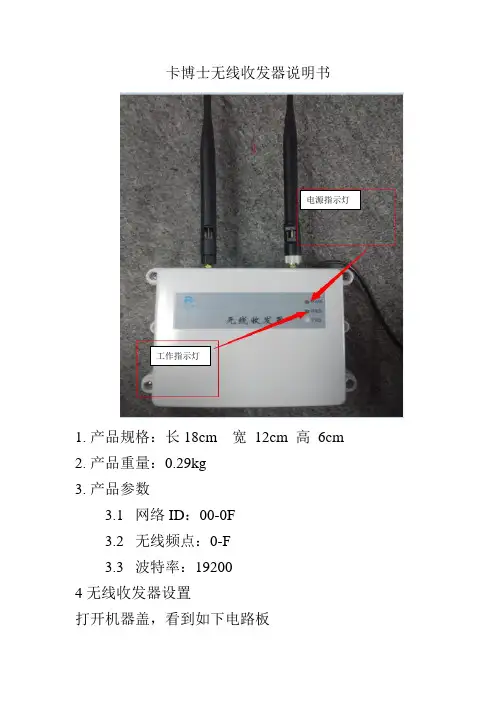
卡博士无线收发器说明书
- 格式:doc
- 大小:1.79 MB
- 文档页数:3


Rev. 1.2012021-10-13BC5602RF 2.4GHz收发器特性•频率带宽:2402~2480MHz •支持3线或4线SPI 接口 •输入电压范围宽:1.9V~3.6V•可编程数据速率:125/250/500Kbps•可编程TX 输出功率:5dBm (最大 +6dBm ) •低电流消耗♦Deep Sleep 模式电流0.5μA ,支持数据保存♦TX 电流:25mA @ 5dBm ♦RX 电流:17mA @ 250Kbps •两个Sleep 模式♦Middle Sleep 模式,支持快速XO 启动 ♦常规的Light Sleep 模式 •RX 灵敏度♦-97dBm @ 250Kbps 无线数据速率 •片上VCO 以及带内置回路滤波器的小数N 分频合成器•支持16MHz 晶振(±20ppm) •数据包处理 ♦数据白化♦自动应答/重发 ♦CRC 可选协议 ♦支持Burst 数据包 ♦支持自动ACK 处理♦适用于1:6星型网络的6个数据管道 •符合FCC/ETSI•封装类型:16-pin QFN (3mm ×3mm)概述BC5602为高性能、低成本的完全集成的CMOS RF GFSK 收发器,可用于2.4GHz 频 段的无线应用。
该芯片内置一个高集成的2.4GHz 收发器和一个基带调制解调器,可编程数据速率为125Kbps 、250Kbps 和500 Kbps 。
数据处理特性包括3层32字节TX/RX FIFO 和数据包处理,如白化和CRC 校验。
BC5602支持Middle Sleep 模式,仅消耗30μA 微量电流即可实现XO 快速启动。
该芯片可在2.4GHz 频段数据速率为250Kbps 时实现-97dBm 的灵敏度,提供+5dBm TX 输出功率时的电流消耗为25mA 。
完全内置的小数N 分频合成器所支持的频率范围宽,分辨率高。
外部主控MCU 可通过一个3线或4线的SPI 接口访问BC5602。

802.11a Wireless CardBus Adapter 54 MbpsHA501 Installation GuideIntroductionThank you for purchasing the NETGEAR HA501 802.11a Wireless CardBus Adapter. This wireless adapter enables you to network various PC’s together without physically laying any wire and delivers high-speed wireless performance – up to 54 Mbps, 72 Mbps in turbo mode.It provides small business networks with reliable, standards-based 802.11a LAN connectivity that is protected with industry-standard security. NETGEAR's 802.11a solution is interference-free and coexists with 802.11b and Bluetooth TM devices. It works with Windows ®98, Me, NT 4.0, 2000, and XP operating systems.This installation guide shows you how to install the adapter and the software for the adapter,and configure it to create a wireless network. Setup is easy—follow the instructions in this guide and your system will be up and running quickly.If you have problems, there is a troubleshooting section on page 17 to help you. Or you can get more detailed troubleshooting information from the reference guide on the HA501 Resource CD-ROM. NETGEAR also offers free support 24 hours a day, 7 days a week on the Web (), by e-mail (support@), and by phone (see the provided support information card for phone numbers).Installation OverviewEstimated setup time: 10 to 15 minutes 1.Determine the configuration of your wireless network.2.Install the wireless adapter.3.Install the wireless configuration utility for the adapter.4.Configure the adapter.5.Test the connection.Note: Users of SystemSoft’s CardWizard must install NT 4.0 with Service pack 6 in order for the HA501 Wireless Adapter to function properly.For more detailed information about installation, troubleshooting, and configuration proce-dures, see the reference guide on the HA501 Resource CD-ROM.NETGEAR, INC.4500 Great America Parkway Santa Clara, CA 95054USAPhone: 1-888-NETGEARE-mail: support@ Technical SupportYOU MUST REGISTER TO OBTAIN TECHNICAL SUPPORT. PLEASE RETAIN PROOF OF PURCHASE and the warranty information.T o register your product, get product support or obtain product information and product documentation, go to . If you do not have access to the World Wide Web, you may register your product by filling out the registration card and mailing it to NETGEAR customer service.You’ll find technical support information at: / through the customer service area. If you want to contact technical support by telephone, see the support information card for the correct telephone number for your country.©2002 by NETGEAR, Inc. All rights reserved.NETGEAR is a registered trademark of NETGEAR, Inc. in the United States and/or other countries. Other brand and product names are trademarks or registered trademarks of their respective rmation is subject to change without notice.Determine the Network ConfigurationT o set up the wireless adapter, you need to determine the network setting of your wireless network.Are you running the wireless network in ad-hoc mode or infrastructure mode?There are two modes of configuring your wireless adapter: ad-hoc mode or infrastructure mode. In an ad-hoc wireless network, there is no access point. Each node communicates with any other node directly. (A node is a network connection point. For example, a PC in a LAN is a node.)In the infrastructure mode, the wireless access point bridges between the wired LAN and wireless network. Connecting multiple access points via a wired Ethernet backbone can further extend the wireless network coverage. As a mobile computing device moves out of the range of one access point, it moves into the range of another. As a result, wireless clients can freely roam from one Access Point domain to another and still maintain a seamless network connection.If you are running a wireless network in infrastructure mode, please set up the access point (such as the NETGEAR HE102 802.11a Wireless Access Point) first, before you set up this wireless adapter.Ad-hoc mode or infrastructure mode: _________________________________________What’s in the BoxWhen you open the box, verify that you received everything. The package includes:•HA501 802.11a Wireless CardBus Adapter•HA501 Resource CD-ROM, including a full reference guide •HA501 Installation Guide (this document)•Warranty and registration card •Support information cardIf you don’t have everything listed above, see the Support information card for contact information. If the support information card is missing, go to/support_contacts.html to obtain contact information.1NOTEBOOK withHA501 Wireless AdapterNOTEBOOK withHA501 Wireless AdapterNOTEBOOK withHA501 Wireless AdapterAd HocDSL or cable modem10 MbpsEthernet10/100 Mbps FR318 Firewall RouterHE102 Wireless Access PointPC with FA311PC with FA311InternetM R314Cable/DSLWireless Router LOCALINTERNETLNK ACT100LNK/ACTPWR TEST WIRELESSLNK ACTHE 102802.11a Access PointNOTEBOOK with HA501 Wireless Adapter NOTEBOOK withHA501 Wireless Adapter NOTEBOOK withHA501 Wireless AdapterTroubleshootingProblemCauseSolutionNo lights are lit on The wireless card •Remove and reinsert the wireless adapter.the wireless adapterdriver is not inserted • Check the device manager in Windows to into the CardBus PC see if the adapter card is properly recognized card slot properly or in the Windows operating system. Reload the proper wireless the driver if necessary.HA501 adapter driver • T ry to install the driver in different CardBus is not loaded.PC card slot on your Windows NT systemif it’s available The two LED’s are The wireless adapter •The access point may not be powered on. blinking alternatelyis not associated to • The access point and the PC card are not any access point configured with the same wirelessproperly. You may not parameters. Check into the SSID and WEP , have configured the T urbo mode option encryption settings.wireless parameters of • The access point may be out of range. T ry the wireless nodes to moving the system closer to the access point be the same as the or readjusting the antenna on the access access point.point. You may also move the access point toa higher location for better signal reception by the wireless adapter.I am associated This could be a • Check to make sure that the access point is and access point, physical layer physically connected to the Ethernet but I cannot see the problem or a network network.other computers on configuration problem.• Make sure that the IP addresses and thethe Ethernet side Windows networking parameters are all of the networkconfigured correctly.Test the ConnectionThe end panel of the HA501 Wireless Adapter has two lights (LEDs): Power and Network that let you monitor the status of your wireless network:LED Activity Meaning of LED ActivityAlternate blinking Looking for a network associationSlow-rate blinking Associated or joined with the network; no activityFast-rate blinkingAssociated or joined with the network; activity on the networkBoth of the LED’s on the HA501 Wireless Adapter should be blinking together (not alternat-ing) to indicate linking condition between the access point and the wireless adapter.© 2002 by NETGEAR, Inc. All rights reserved. Trademarks NETGEAR is a registered trademark of NETGEAR, INC. Windows is a registered trademark of Microsoft Corporation. Other brand and product names are trademarks or registered trademarks of their respective rmation is subject to change without notice. All rights reserved. Statement of Conditions In the interest of improving internal design, operational function, and/or reliability, NETGEAR reserves the right to make changes to the products described in this document without GEAR does not assume any liability that may occur due to the use or application of the product(s) or circuit lay-out(s) described herein.Federal Communications Commission (FCC) Compliance Notice:Radio Frequency Notice Netgear Inc., 4500 Great America Parkway, Santa Clara, CA 95054, (408) 907-8000, declares under our sole responsi-bility, that this device complies with part 15 of the FCC Rules. Operation is subject to the following two conditions:• This device may not cause harmful interference.• This device must accept any interference received, including interference that may cause undesired operation.Note:This equipment has been tested and found to comply with the limits for a Class B digital device, pursuant to part 15 of the FCC Rules. These limits are designed to provide reasonable protection against harmful interference in a residential installation. This equipment generates, uses, and can radiate radio frequency energy and, if not installed and used in accordance with the instructions, may cause harmful interference to radio communications. However, there is no guarantee that interference will not occur in a particular installation. If this equipment does cause harmful interfer-ence to radio or television reception, which can be determined by turning the equipment off and on, the user is encour-aged to try to correct the interference by one or more of the following measures: • Reorient or relocate the receiving antenna, • Increase the separation between the equipment and receiver, • Connect the equipment into an outlet on a circuit different from that to which the receiver is connected, • Consult the dealer or an experienced radio/TV technician for help.Radio Frequency Interference Requirements This device is restricted to indoor use due to its operation in the 5.15 to 5.25 GHz frequency range. FCC requires this product to be used indoors for the frequency range 5.15 to 5.25 GHz to reduce the potential for harmful interference to co-channel Mobile Satellite systems. High power radars are allocated as primary users of the 5.25 to 5.35 GHz and 5.65 to 5.85 GHz bands. These radar stations can cause interference with and /or damage this device.19SpecificationsGeneral Description:HA501 802.11a Wireless CardBus AdapterRadio Data Rate:6,9,12,18,24,36,48,54,72 Mbps (Auto rate capable)Modulation Type:OFDM (BPSK, QPSK, 16-QAM, 64-QAM)Frequency Band: 5.15 ~ 5.25 GHz (lower band) for US/Canada, Japan5.25 ~ 5.35 GHz (middle band) for US/CanadaEncryption:Hardware-based 64, 128, & 152-bit WEP encryption Standards Compatibility:IEEE 802.11Operating Range:Closed Environment@ 54 Mbps 60 ft. (18.3m)@ 6 Mbps 300 ft. (91.4m)Open Environment@ 54 Mbps 100 ft. (30.5m)@ 6 Mbps 1200 ft. (366m)Bus type:32-bit CardBus PC card interfaceDrivers:Microsoft Windows 98, Me, NT 4.0, 2000, XPDimensions:W: 88 mm (3.4 in) D: 54 mm (2.1 in) H: 5 mm (0.2 in)Weight:43.4 g (1.6 oz)Status LEDs:Power/NetworkEnvironmental Specifications:Operating temperature: 0 to 60C (32 to 140º F)Operating humidity: 5-95%, noncondensingElectromagnetic Compliance:FCC Part 15 Class B and Class EWarranty:Limited 5-year18NETGEAR Model HA501 Wireless PC Card FOR HOME OR OFFICE USE Tested to Comply with FCC Standards。

SUNREO T ECH WLAN-24AP-S802用户手册WLAN-24AP-S802目录目录目录 (2)包装清单 (3)介绍 (4)特性和优势 (6)无线基础 (7)三种操作模式 (10)开始 (11)使用配置菜单 (13)AP管理器II (54)网络基础 (55)故障排除 (71)技术规格 (77)注册 (80)SUNREO ⏹ AirPremier TM 可管理无线接入点 ⏹以太网供电基本设备⏹ 电源适配器 -DC 48V ,0.4A ⏹ 电源线缆⏹内含手册和保修卡的CD光盘⏹ 快速安装向导 ⏹以太网电缆包装清单系统最小要求注意:使用不同于内置电压的电源会损坏该设备,且不予保修。
如以上内件有任何遗失,请联系零售商。
⏹ 带Windows®,Macintosh®,或基于Linux 操作系统的计算机,并安装有以太网卡⏹ Internet Explorer 版本 6.0或 Netscape Navigator ™ 版本 7.0或更高包装清单⏹ 支架座用户手册WLAN-24AP-S802WLAN-24AP-S802WLAN-24AP-S80224AP-S802sunreo Premier 速率比以前的无线设备最快高达到15倍(在Super G 模式中无线信号速率最高达到108Mbps*),这样您就能够更快更有效地工作,提高生产力。
有了让大型文件能够快速通过网络,使诸如图形或多媒体,对带宽要求比较高的应用程序获益良多。
能够以三种不同的无线组网模式运行;接入点,带有AP 的WDS (无线网络部署延展系统),或者WDS 模式。
使用PoE (以太网供电),减少了布线的工作量,节省了时间和资金,带来了更大的灵活性。
有了PoE ,在CAT5电缆上可以在传输数据的同时,提供电源,使您的网络安装变得比较廉价,而且更方便。
Air为了能更好地快速建立和扩展办公室中或其它工作地点,商业展示和特殊场合中的无线局域网(WLAN ),在与其它产品一起工作在Super G 模式下时,提供的数据传输速率最高达到108Mbps 。